 By
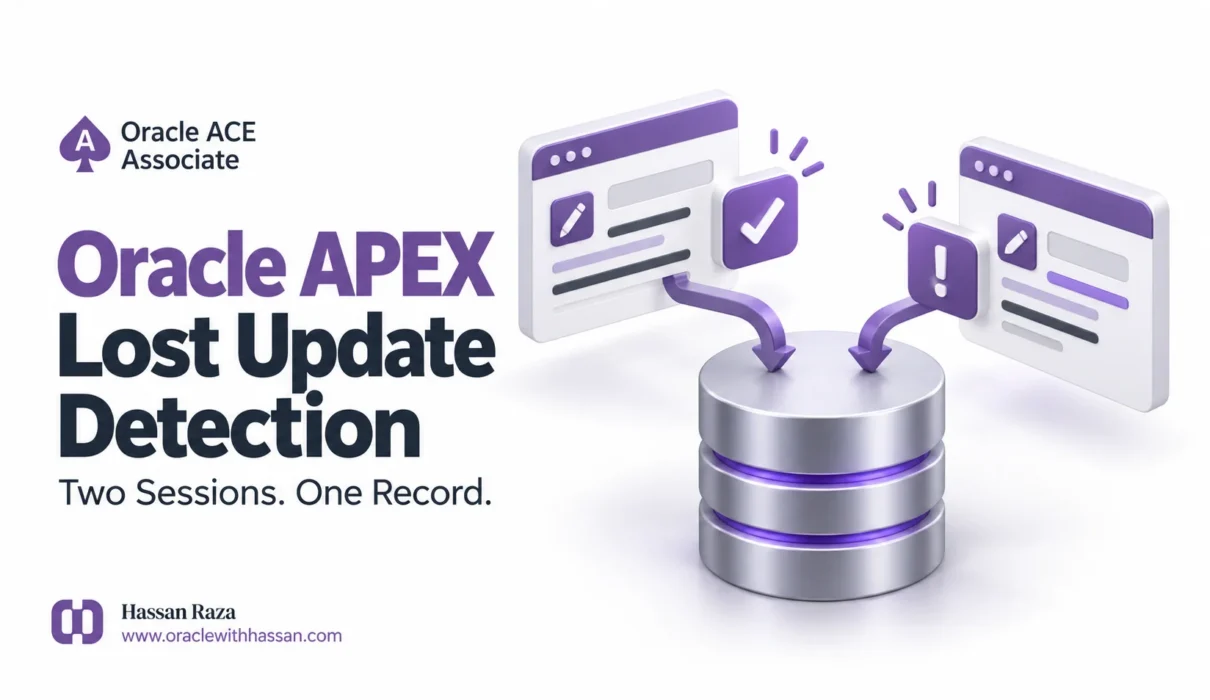
By Oracle APEX lost update detection stopped a stale form from overwriting a newer change in this APEX 26.1.0 lab. Both sessions opened the same record at version 1. The first saved successfully and advanced it to version 2. When the second submitted its older copy, APEX rejected the save, and a database query confirmed that the first edit remained intact.
This walkthrough gives you the table, trigger, exact Page Designer settings, actual screenshots, and repeatable test sequence. It also covers the part users encounter after the error: reopening the current record and applying a reviewed change.
Tested on 5 October 2026: a hosted Oracle APEX 26.1.0 environment, using a normal Form region and two independent APEX sessions under the same signed-in account. The sample data is synthetic. This test does not establish behavior for two different user identities, an Interactive Grid, or every other path that can update your table.
What a lost update looks like
Imagine two editing sessions loading the same request. Session A changes its status. Session B still has the old values on screen and submits later. If the save path accepts that stale copy without a concurrency check, the later submission can overwrite work that the person in session B never saw.
For this demo, each row has a numeric ROW_VERSION. A database trigger increments it on every update. The form uses that column to detect whether its loaded row has changed before it writes. This is optimistic concurrency: people can keep a form open while someone else edits; a stale submission is checked when it is saved.
The important configuration has two parts: the Form region selects the comparison method, and its Automatic Row Processing process enables the check. Oracle documents those together in Configuring Lost Update Detection.
The small demo application
- Application 134: Buddy Lab – Lost Update Detection.
- Page 2: Protected Requests, an Interactive Report used to open records.
- Page 3: Edit Protected Request, a normal Form region.
- Table:
BUDDY_LUD_REQUESTS. - Trigger:
BUDDY_LUD_REQUESTS_BU.
The report is only the navigation and result view. The protection being tested belongs to the form’s server-side DML process.
Step 1 Create the table and version trigger
Use SQL Workshop → SQL Scripts in a fresh, disposable demo schema. Run the following script once. It creates two seed requests without dropping an existing table. If those object names already exist, stop and choose an empty demo schema rather than replacing working objects.
-- Buddy Lab: Lost Update Detection (Oracle APEX 26.1)
-- Synthetic demo only. Run once in a fresh demo schema using SQL Scripts.
-- This script does not drop or replace any table.
create table buddy_lud_requests (
  request_id number generated by default as identity primary key,
  title varchar2(120) not null,
  status varchar2(20) default 'OPEN' not null,
  notes varchar2(1000),
  row_version number default 1 not null,
  updated_at timestamp default systimestamp not null,
  constraint buddy_lud_status_ck check (status in ('OPEN','IN_PROGRESS','DONE'))
);

create or replace trigger buddy_lud_requests_bu
before update on buddy_lud_requests
for each row
begin
  :new.row_version := :old.row_version + 1;
  :new.updated_at := systimestamp;
end;
/

begin
  insert into buddy_lud_requests (request_id,title,status,notes)
  values (1,'Synthetic request Alpha','OPEN','Baseline for same-row concurrency test');
  insert into buddy_lud_requests (request_id,title,status,notes)
  values (2,'Synthetic request Beta','OPEN','Baseline for different-row concurrency test');
  commit;
end;
/

select request_id, title, status, notes, row_version,
       to_char(updated_at,'YYYY-MM-DD HH24:MI:SS.FF3') updated_at
from buddy_lud_requests
order by request_id;

-- Align future generated IDs after the two explicit synthetic seed IDs.
alter table buddy_lud_requests modify request_id generated by default as identity (start with limit value);
The table defaults supply version 1 and an initial timestamp on insert. The trigger owns subsequent version and timestamp changes. Updating any column advances the row version, including an update issued outside this form while the trigger remains enabled.
The final identity statement matters because the seed rows explicitly use IDs 1 and 2. It aligns future generated IDs with the populated table. The later Create test produced request ID 3. See Oracle’s ALTER TABLE reference for the identity-column clause and verify compatibility with your own database release.
Step 2 Build the report and normal form
In App Builder, create a report with a form for the local table BUDDY_LUD_REQUESTS. Use REQUEST_ID as the primary key. The lab uses report page 2 and normal form page 3; use your own page numbers if those are already taken. Oracle’s Creating a Form guide describes the supported wizard routes.
Keep TITLE, STATUS, and NOTES editable. The allowed status values in this table are OPEN, IN_PROGRESS, and DONE. Keep the generated primary-key item and the form initialization process associated with the form region.
Step 3 Configure Oracle APEX lost update detection
Open page 3 in Page Designer. Select the Form region, then its Attributes → Edit settings:
- Lost Update Type: Row Version Column
- Row Version Column: ROW_VERSION
Next, open Processing → Process form Edit Protected Request, the Form – Automatic Row Processing (DML) process:
- Target Type: Region Source
- Prevent Lost Updates: On
- Lock Row: Yes
All five values above were checked in the actual application and its native export. Enabling only the region’s comparison method is not the complete configuration.
Oracle also offers Row Values, which compares a checksum of updatable columns. This lab deliberately uses a version column on one table. Oracle does not recommend the row-version option for a form that updates multiple tables; do not extend this recipe to that case without reviewing its design.
Keep row locking enabled for this local-table form. The lock covers the server-side check-and-write operation; it does not hold a database row locked for the entire time a browser form is open. Oracle’s form-region explanation describes why that short interval matters.
Keep the server-managed fields out of form writes
For both P3_ROW_VERSION and P3_UPDATED_AT, use these item settings:
- Read Only → Type: Always
- Source → Query Only: Yes
- Validation → Value Required: No
This lets the lab display the fetched values without asking the form to supply them during DML. The row-version column remains configured at the Form region. The database defaults, NOT NULL constraints, and update trigger still maintain the stored values.
There was a useful failure during setup: the generated form initially required the two server-managed items when creating a record. An empty new form could not satisfy that requirement. Setting Value Required = No fixed the Create path, and both Create and the stale-save test were rerun afterward. A read-only field can still have a validation requirement, so test inserts as well as edits.
Step 4 Open two genuinely independent sessions
Two browser tabs do not automatically give you independent APEX session state. In an initial setup attempt, signing in again in a second tab replaced the shared authentication cookie and the earlier tab reported that its session had ended. That attempt did not test concurrent saving.
The completed lab uses Oracle’s documented session-cloning request. Add a link on report page 2 using this target, opening it in a new tab:
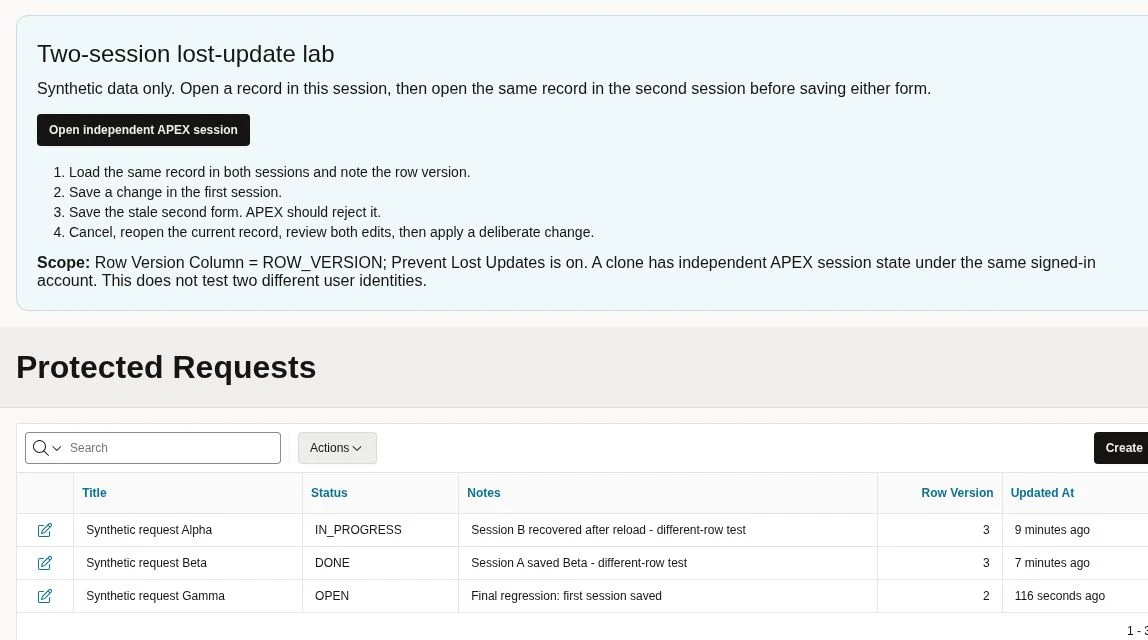
f?p=&APP_ID.:2:&APP_SESSION.:APEX_CLONE_SESSIONReplace 2 if your report uses another page number. Use substitution strings; do not hard-code a live session identifier. The lab’s link is labeled Open independent APEX session.
A clone starts with copied session values and a distinct APEX session identifier. It remains associated with the same authenticated account, including shared logout behavior. This is a two-session experiment, not a two-user authorization test. Oracle explains these details in About Session Cloning.
If cloning is disabled on your instance, do not change instance security settings merely to follow a tutorial. Use separately authenticated browser profiles permitted by your administrator, and verify that both sessions remain usable before testing.
Step 5 Reproduce the stale-save conflict
- From the report, open Synthetic request Alpha in session A. Its starting row version is 1.
- Open the independent session and load the same Alpha record in session B, also at version 1. Load both forms before saving either one.
- In session A, set Status to
IN_PROGRESSand Notes toSession A saved first - protected same-row test. Apply Changes. - Confirm that the report shows the first edit and row version 2.
- Return to the still-open session B form. Set Status to
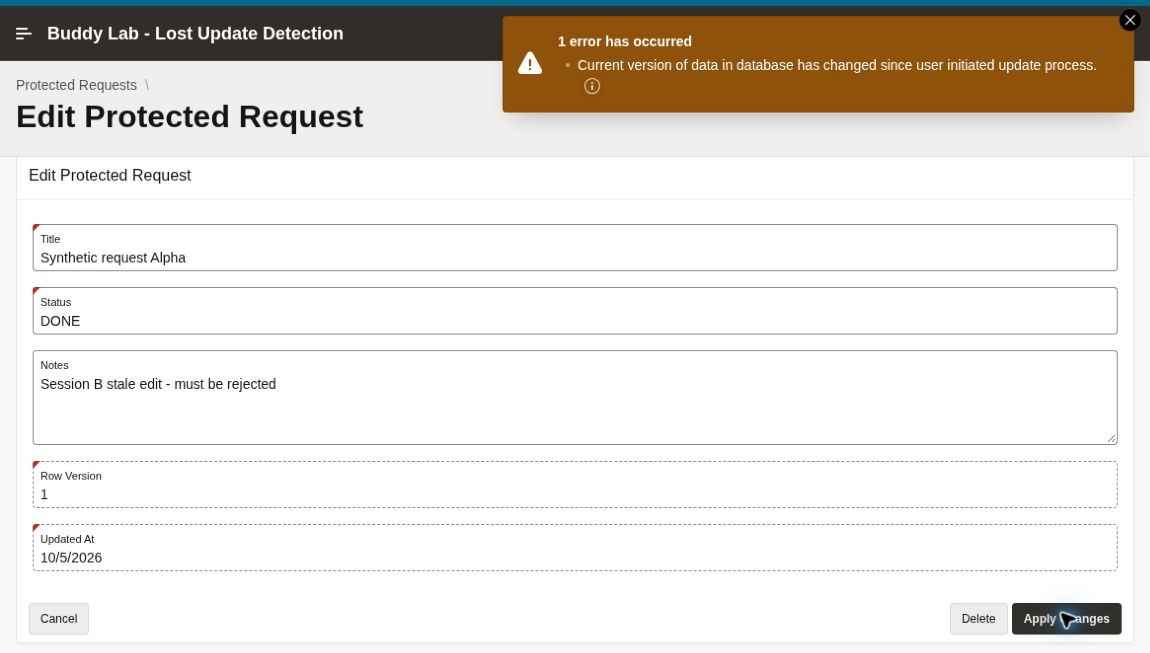
DONEand Notes toSession B stale edit - must be rejected. Apply Changes without reloading first.
In the actual run, session B received this error:
Current version of data in database has changed since user initiated update process.
Developer Technical Info identified APEX.DATA_HAS_CHANGED with ORA-20987 in Process form Edit Protected Request. Treat that as the observed diagnostic for this test, rather than a guarantee that every APEX version or custom error handler displays identical wording.
Verify the stored row rather than trusting the error banner
Run this read-only query in SQL Workshop after the conflict:
select request_id, title, status, notes, row_version,
       to_char(updated_at, 'YYYY-MM-DD HH24:MI:SS.FF3') updated_at
from buddy_lud_requests
where request_id = 1;
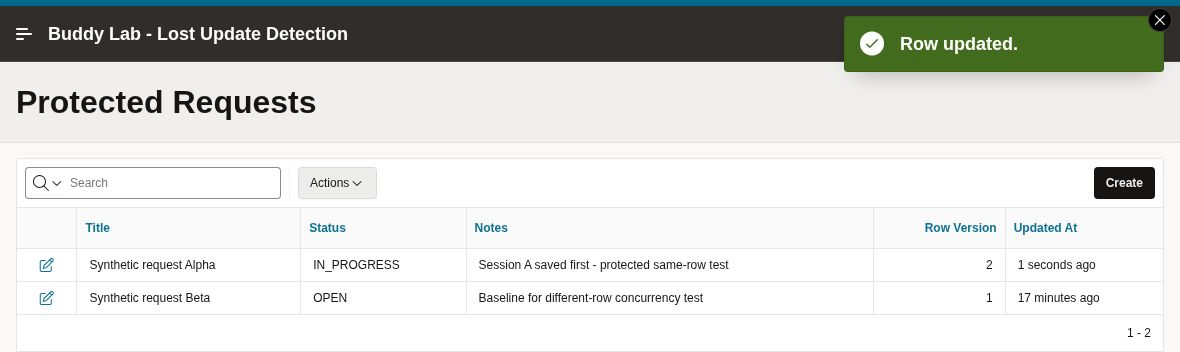
The verified result retained IN_PROGRESS, session A’s notes, and version 2. The rejected submission caused neither an overwrite nor a version increment. That database check is the evidence that the protection worked.
Step 6 Recover without discarding the newer edit
Before leaving a failed form, preserve any important unsaved text so it can be compared. Cancel back to the report and reopen the current record. Review the latest stored values, decide how your intended change fits with them, and submit a deliberate new edit.
In this run, reopening Alpha displayed session A’s values at version 2. The formerly stale session then changed its notes and saved successfully at version 3. This was a manual review and resubmission; the demo does not implement an automatic merge.
Do not turn off Prevent Lost Updates to clear the error, or silently fetch a fresh version and retry the entire stale payload. Either approach can defeat the reason for checking the version. A helpful production error message should explain how to reopen and review the current record.
If you are adding refresh controls or client-side prompts, see Oracle APEX Dynamic Actions Made Easy. Those controls can improve the recovery experience; the save-time concurrency check must still run on the server.
What the other tests showed
| Scenario | Observed result |
|---|---|
| Same row, stale second save | Rejected; Alpha retained the first edit at version 2. |
| Cancel, reopen, review, and save | Succeeded; Alpha advanced to version 3. |
| Different rows in overlapping editing sessions | Both saved; Alpha reached version 3 and Beta version 2. |
| Same row, different columns | The stale second save was rejected. |
| Create a new request | Succeeded after the server-managed item validation fix; Gamma received ID 3 and version 1. |
| Repeat stale save after the final form changes | Rejected; Gamma retained the first session’s notes at version 2. |
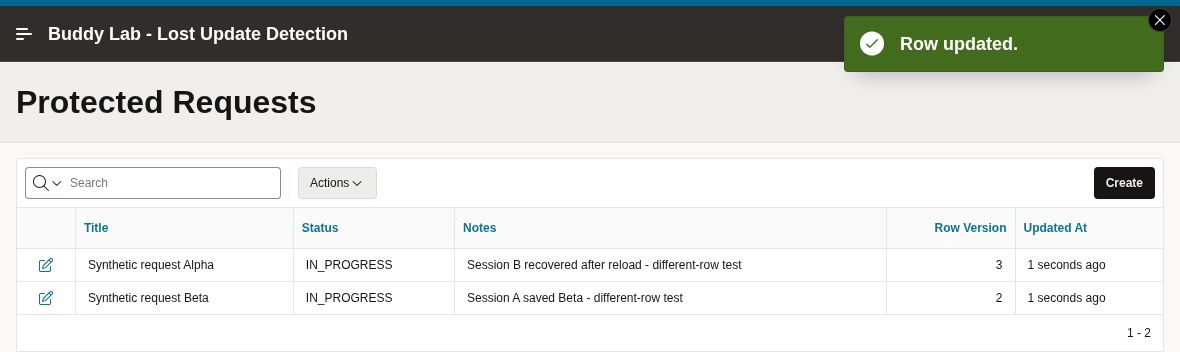
Different columns still conflict on the same row
This is an important boundary of the chosen design. Both sessions loaded Beta at version 2. Session A changed only Status to DONE and saved, producing version 3. Session B changed only Notes while its form still held the previous status. Its save was rejected.
The trigger tracks changes to the row as a whole. It does not decide that two edits are safe to merge because the people touched different fields. The database check confirmed that Beta remained DONE, with the first notes and version 3.
Common mistakes to check in your own form
- The region is configured, but stale saves still succeed. Verify the correct Form DML process has Prevent Lost Updates enabled. Check that a separate custom process is not writing the same row outside that path.
- The version never changes. Inspect and test the trigger. Every successful update path needs to advance the version used by the form.
- Create fails on a read-only audit item. Check Value Required and Query Only. Keep the database defaults and constraints intact.
- The second tab logs out. Fix the independent-session setup before interpreting the result as a concurrency test.
- The error screenshot seems to show the wrong status. A failed form can display the rejected input. Query the database or reopen the row to establish what persisted.
A trigger that increments a version does not by itself reject every stale writer. A custom package, REST endpoint, batch job, or separate application that writes without comparing an expected version needs its own concurrency design. Client-side read-only settings also do not replace authorization or server-side validation.
Before you reuse the demo
Repeat the same-row, different-row, and Create tests in your own environment. This lab did not test delete conflicts, an unprotected comparison, Interactive Grid behavior, different user permissions, or load and stress conditions. APEX 26.1.0 was observed; the underlying Oracle Database version was not recorded.
If you are checking forms during an upgrade, add these cases to the regression work in the Oracle APEX 26.1 Upgrade Checklist. Recheck the actual saved Page Designer configuration after import, not just the screenshots.
Download the tested APEX application
Download the Oracle APEX lost update detection demo ZIP (about 68 KB). It contains the native f134.sql application export, setup.sql, a README, and the export SHA-256 checksum.
The exact native export was imported successfully as new application 135 in the same workspace and schema, using the existing synthetic table and trigger. The imported report and form loaded, the clone link used the new app ID, and another stale-save regression passed: Gamma advanced from version 2 to 3 on the first save, while the stale second save was rejected.
Installation boundary: the setup statements were verified in an initially empty demo schema, and the application export was separately round-trip tested against those existing objects. The combined package was not installed into a second empty schema. Use a compatible disposable environment, review the SQL, and verify the result before adapting it.
- Run
setup.sqlonce in your fresh demo schema. The native application export does not bundle database Supporting Objects. - Use App Builder → Import to import
f134.sql. Select your demo parsing schema and Auto Assign New Application ID so you do not overwrite another application. - Sign in with an authorized account, open page 2, and repeat the same-row, different-row, recovery, and Create tests.
The native export retains standard APEX source workspace/schema and developer metadata, plus generated login components. It contains no entered passwords or live session URLs.
The practical takeaway
For this local-table form, the working combination was a database-maintained row version, the Form region’s Row Version Column setting, and an Automatic Row Processing process with Prevent Lost Updates and row locking enabled. The stale save was rejected, the first edit remained in the database, and a reviewed edit succeeded after reopening.
Build the same small test around your own form before relying on the configuration. Load the same record twice, save the first copy, submit the stale one, and inspect the stored row. That short sequence tells you more than an enabled checkbox.