 By
By You are three hours into Page Designer. Login page done. Dashboard shell done. Two report pages in. Eight more to go and the client wants something running by tomorrow morning.
I have been in that room.
Oracle APEX Blueprint scaffolding is built for that situation. I used it in 26.1 to generate a complete Inventory Management app from a Markdown file. Nineteen pages. Two charts. A full navigation menu covering Items, Customers, Orders, Reviews, Companies, Users, and Activity Log. I did not open Page Designer once during the build.
But I hit three errors before the app ran. Each one stopped the import cold. The official Oracle documentation shows the happy path. It skips what to do when APEX tells you the schema is not REST enabled, when a parse error kills the blueprint on the second attempt, or when an APEXlang duplicate alias blocks the final install.
This walkthrough covers all of it. The oracle apex blueprint workflow from the first Claude Code prompt to a running application, with every error documented and fixed.
What is an Oracle APEX blueprint?
An Oracle APEX blueprint is a Markdown file that describes what APEX should build. Pages, navigation, regions, reports, forms, charts. You import it into APEX 26.1 through a new “Application Blueprint” option in the import wizard. APEX reads it, validates it, converts it to APEXlang internally, and scaffolds a working application.
It is not the same as writing APEXlang directly. Blueprints use higher-level patterns that map to common APEX page types. The AI produces simpler output. Fewer token errors, faster generation. Oracle calls this Spec-Driven Development.
The official explanation is on the Oracle APEX blog, written by Chaitanya Koratamaddi and Aravind Madhavan from the APEX product team. Read that for the theory. This article is about what happens when you actually run it.
This feature requires APEX 26.1. If you do not have an environment set up, the Oracle Cloud Free Tier setup guide walks through everything at no cost.
What do you need before you start?
Three files and a running APEX 26.1 workspace.
The first file is your functional requirements document. Plain Markdown. Describe what the app should do: screens, flows, data relationships. The more specific you are, the better the blueprint comes out. Vague requirements produce vague pages.
The second file is your schema metadata. Export it directly from APEX: SQL Workshop, then Utilities, then Describe Tables. Select the tables your app uses and download the result.
The third file is Oracle’s blueprint system prompt. Download it from the Oracle APEX GitHub repository. This tells the AI exactly how to format the blueprint so APEX can parse it on import.
You also need Claude Code, either the CLI or the VS Code extension. If you have not used it before, I wrote a full walkthrough when I built an HR app in APEX 26.1 using Claude Code and APEXlang.
One thing worth doing before you start: add comments to your database tables and columns. The AI reads those annotations when generating the blueprint and uses them to connect regions to the right data sources. Annotated schemas produce noticeably better output. The open-source Oracle schema documentation generator I built can help you produce that metadata in a format the AI reads well.
Phase 1: Setting up your files and running the prompt
My project folder was INVENTORY_MANAGMENT. Inside it: functional-requirements.md, schema-metadata.md, and the cloned apex-26 folder from Oracle’s GitHub.
Here is the exact prompt I ran in Claude Code:
Using apex-26/blueprints/prompt/blueprint_prompt.md as the system instructions,
generate an APEX blueprint for the app described in functional-requirements.md
using schema-metadata.md as the schema source.
Follow the icon allowlist in apex-26/blueprints/prompt/apex-fa-icons-allowlist.txt.
Output to blueprint.md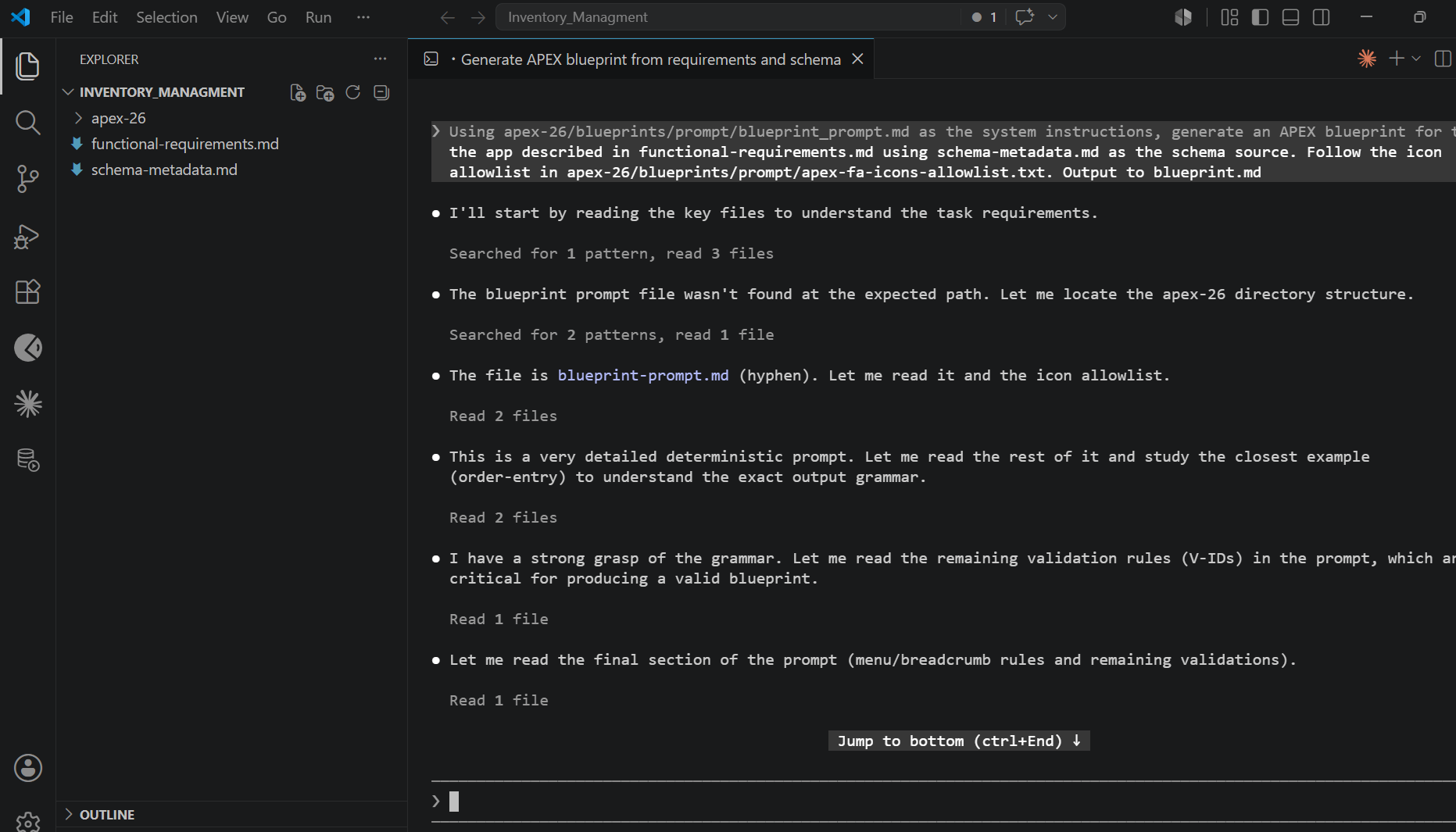
Before generating anything, Claude Code reads all three input files. It studies the grammar rules in the blueprint prompt and works through example blueprints in the GitHub repo. This is how it learns the exact output format APEX expects.
Watch the file names. Oracle ships the prompt as blueprint-prompt.md with a hyphen, not an underscore. Claude Code will hunt for it if your path is wrong, but save yourself the confusion.
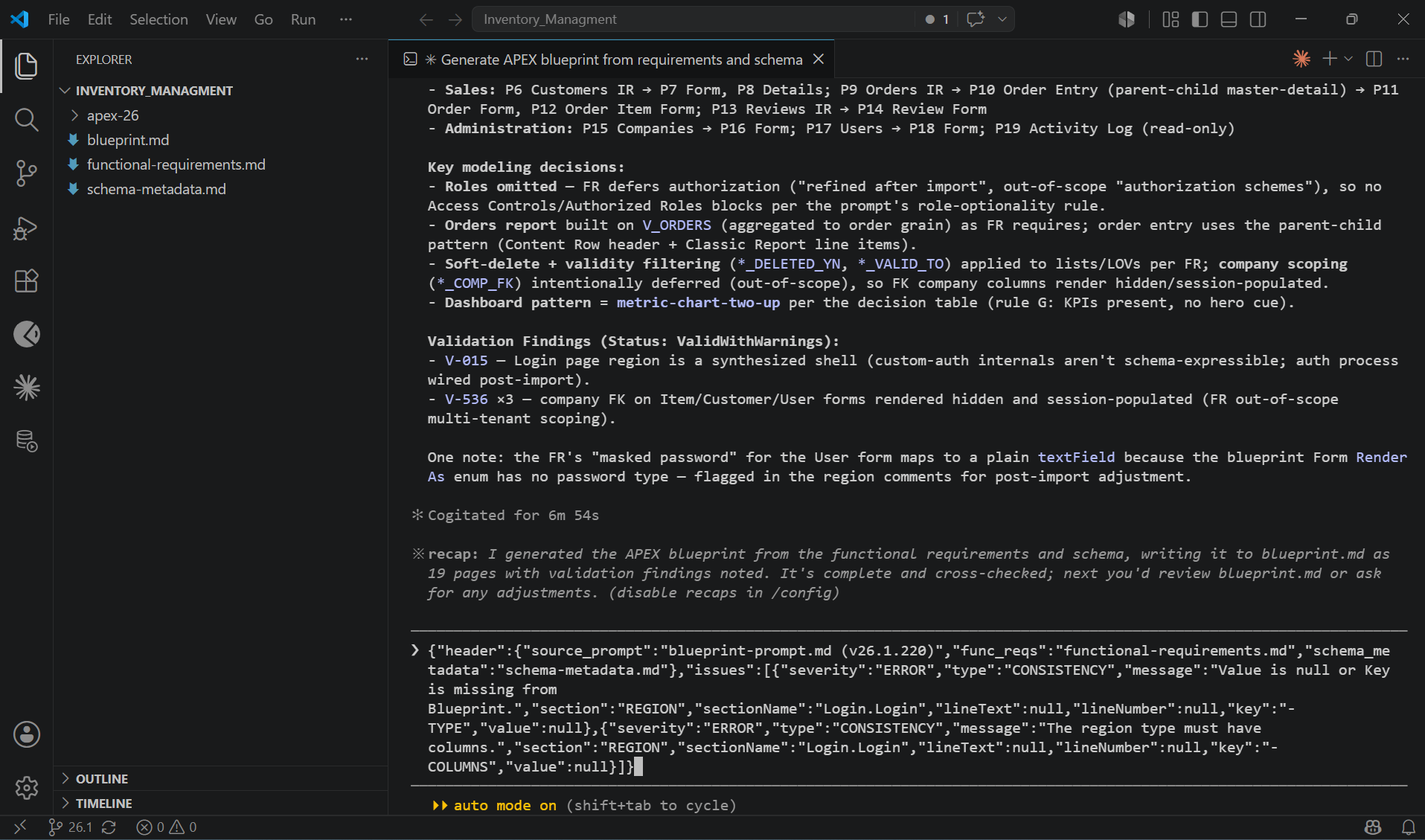
The full generation took 6 minutes and 54 seconds.
Phase 2: What the generated oracle apex blueprint looks like
When it finished, blueprint.md appeared in the project folder. Claude Code printed a full summary of what it built.
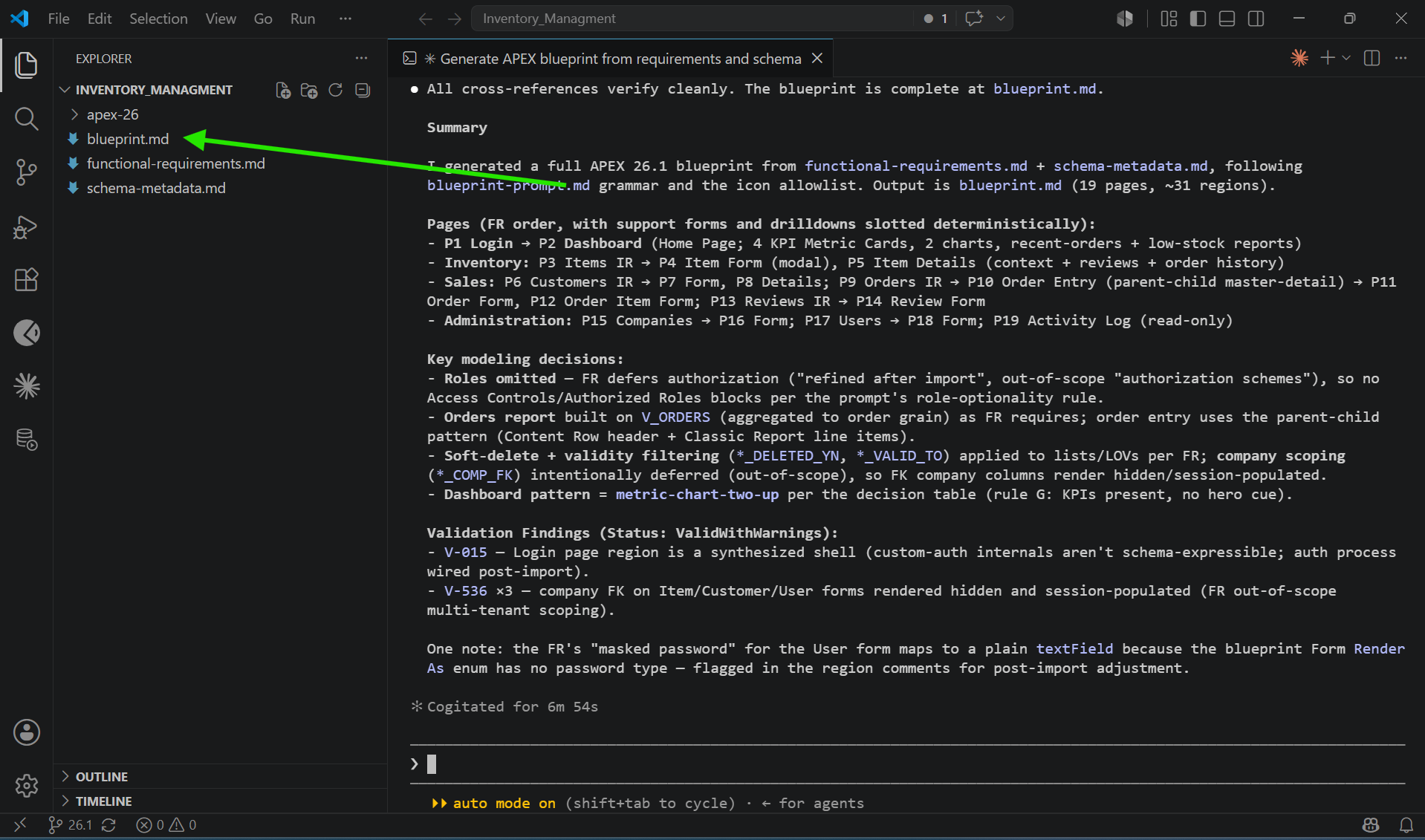
Here is what the 19 pages covered:
- P1 Login, P2 Dashboard with 4 KPI metric cards and 2 charts (orders by status, top items by quantity sold)
- Inventory: Items interactive report, Item Form, Item Details with reviews and order history
- Sales: Customers, Orders, Order Entry using parent-child master-detail, Reviews
- Administration: Companies, Users, Activity Log (read-only)
Claude Code also flagged its own validation findings before I even tried importing. V-015 and V-536 warnings. Not errors. Warnings it expected to see after import, documented upfront.
That preview is one of the things I like about this workflow. Before importing a single page, you can read exactly what APEX will build. You can catch problems in the Markdown before they become problems in the app.
Phase 3: Importing into APEX 26.1
Navigation: App Builder, then Import.
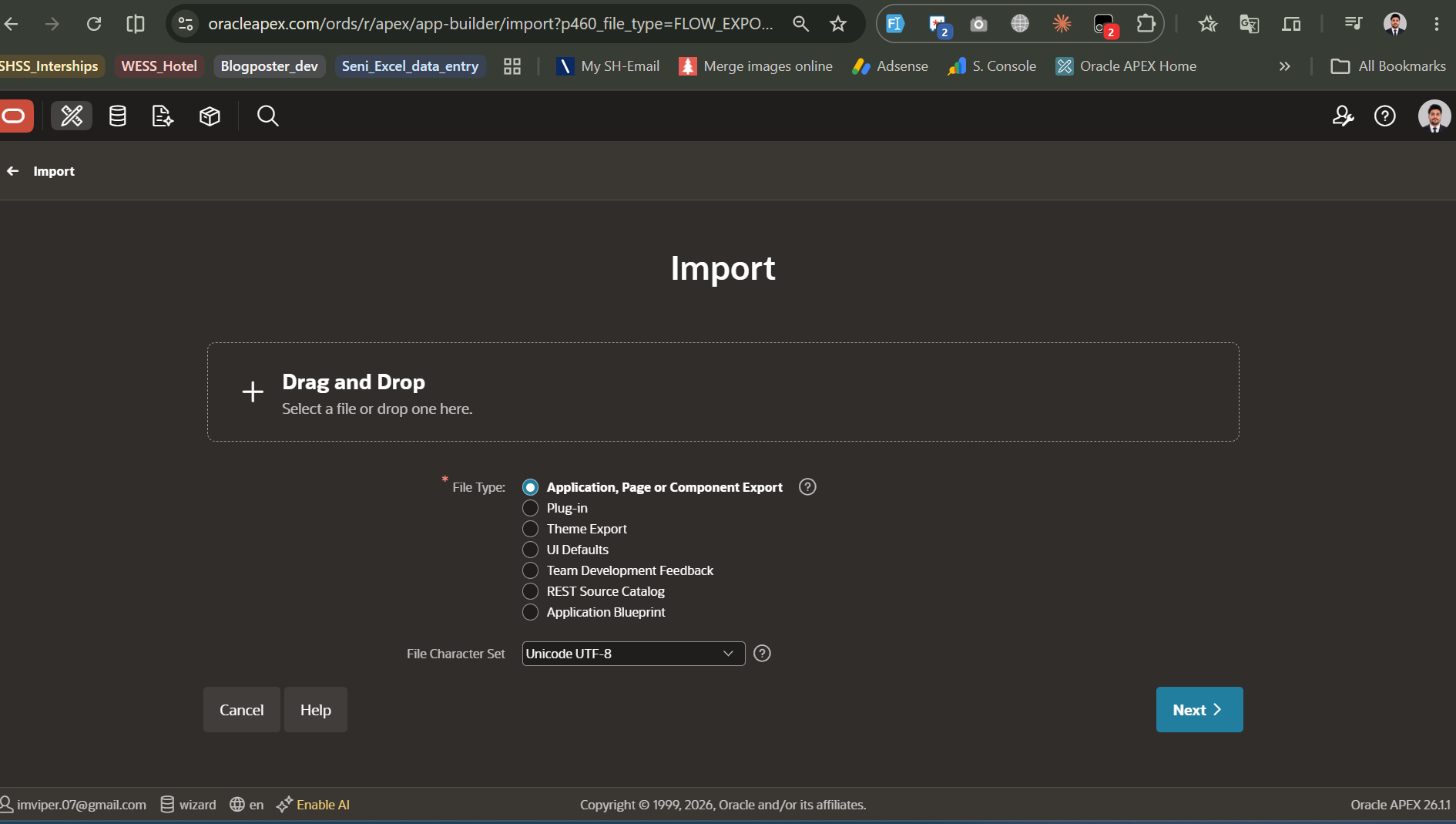
APEX 26.1 added “Application Blueprint” to the File Type options in the import wizard. It is at the bottom. I dragged in blueprint.md, selected it, and clicked Next.
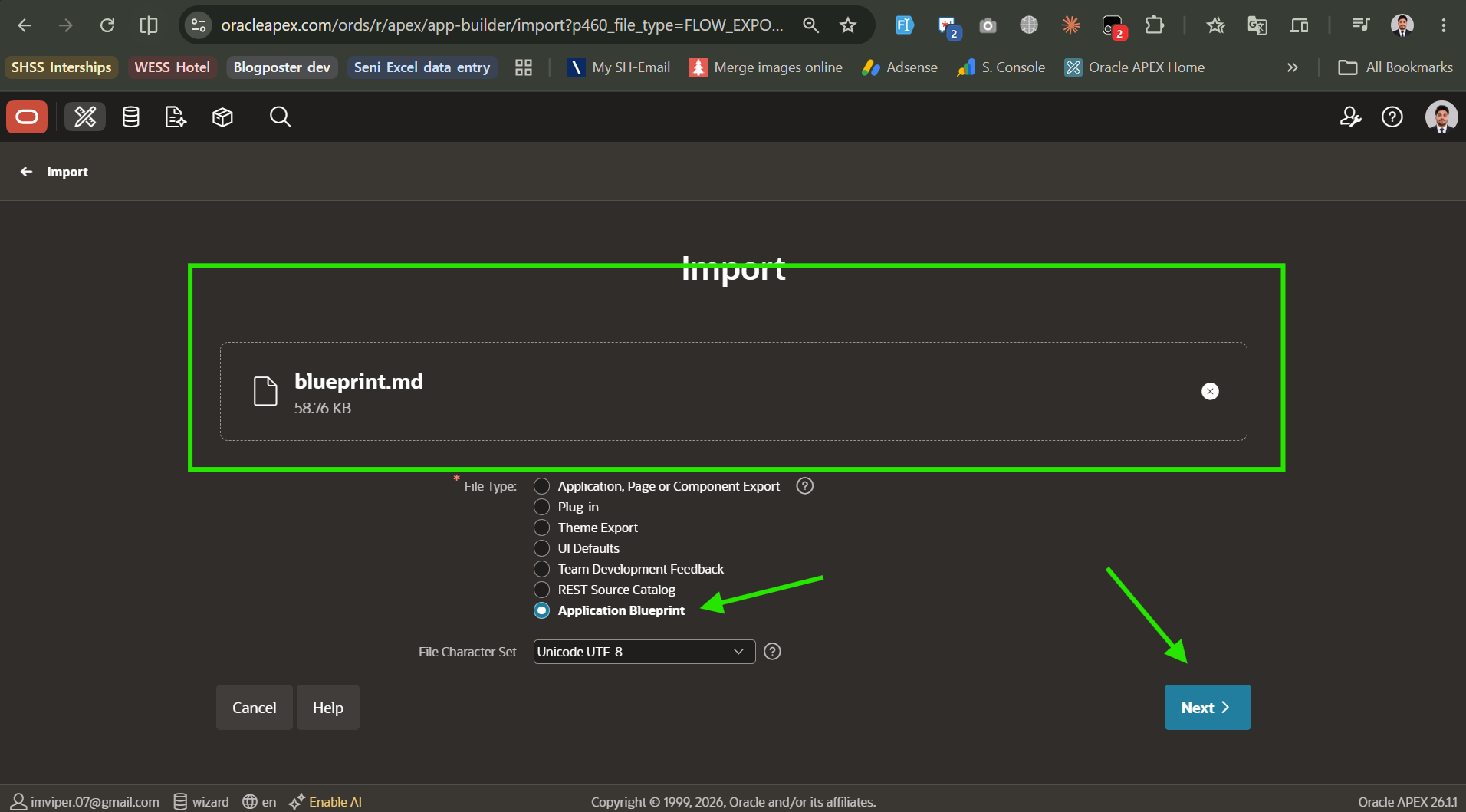
That is when the first error appeared.
Why does the schema REST error happen?
“In order to import Blueprints, at least one schema associated with this workspace must be REST enabled.”
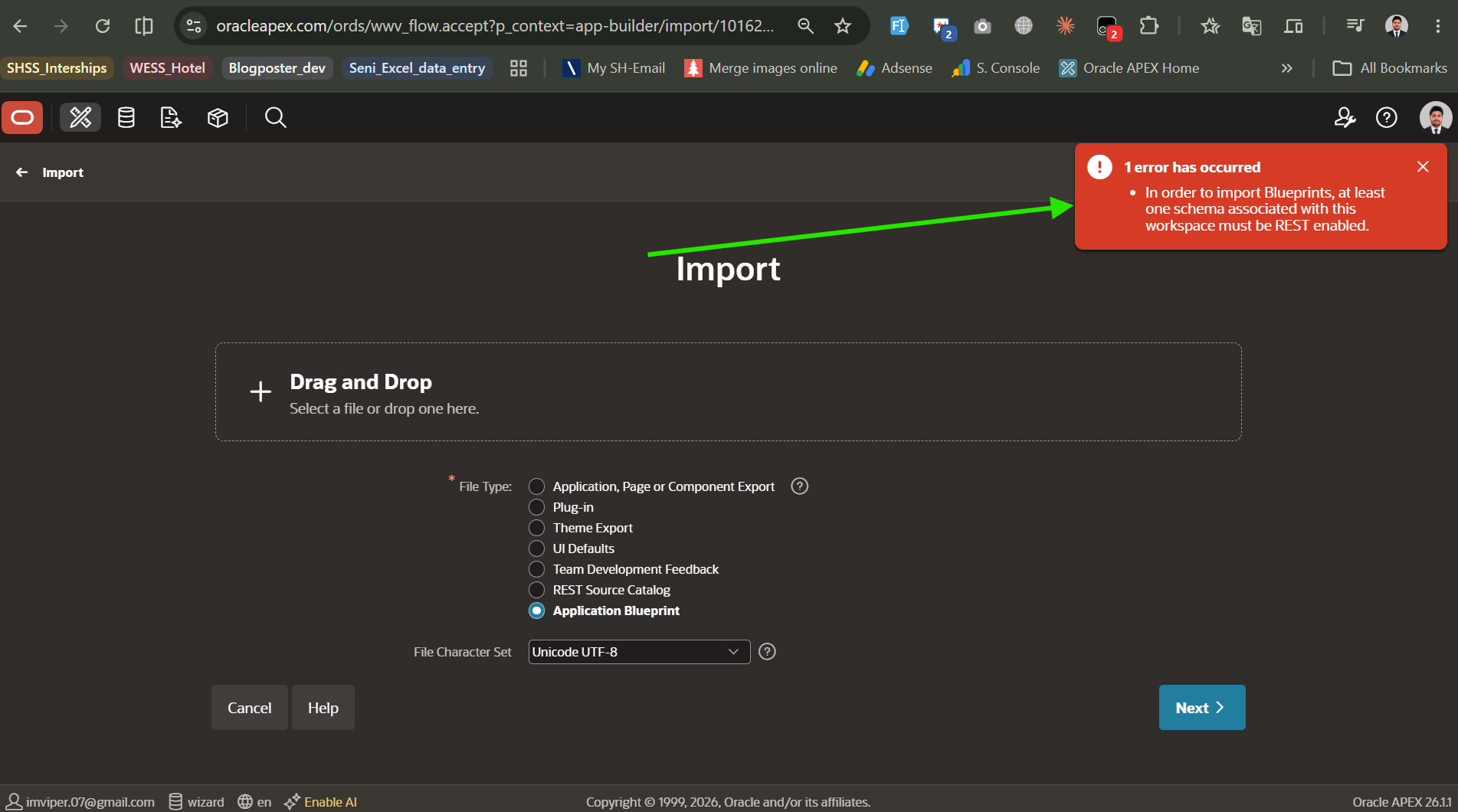
The blueprint import goes through ORDS internally. APEX converts the Markdown to APEXlang through an API call, and that call needs ORDS access to your schema. No REST-enabled schema, no import.
Fix: go to SQL Workshop, then SQL Commands, and run this:
BEGIN
  ORDS.ENABLE_SCHEMA(
    p_enabled             => TRUE,
    p_schema              => 'YOUR_SCHEMA_NAME',
    p_url_mapping_type    => 'BASE_PATH',
    p_url_mapping_pattern => 'your-schema-name',
    p_auto_rest_auth      => FALSE
  );
  COMMIT;
END;
/
Replace YOUR_SCHEMA_NAME with your parsing schema. Mine was WKSP_WIZARD.
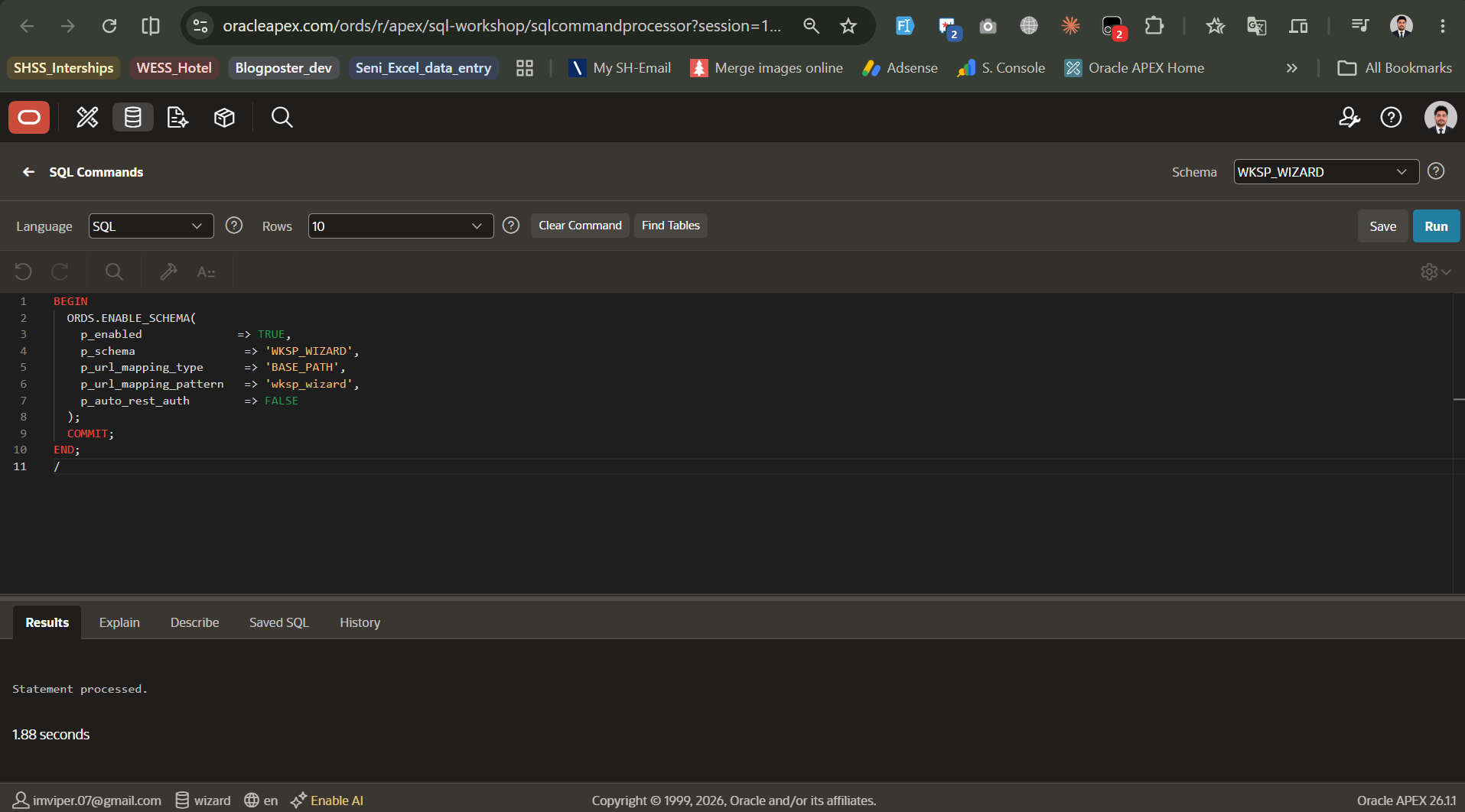
Statement processed. Go back and try the import again.
What causes the blueprint parse error?
After enabling REST, the blueprint uploaded but failed validation.
“The blueprint cannot be imported because it contains parse errors.”
The error log listed two problems on the Login region. TYPE attribute was null. The region had no COLUMNS defined.
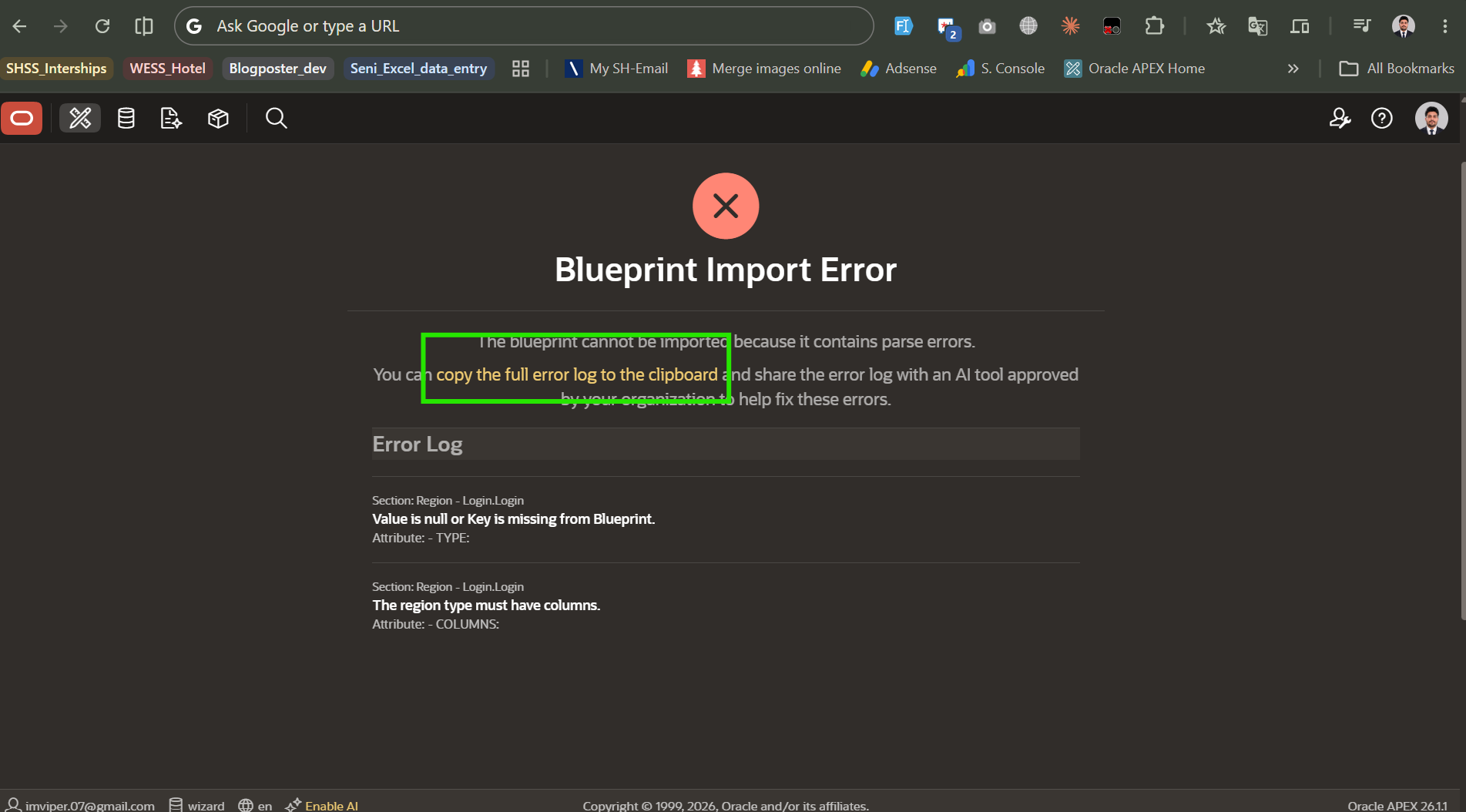
APEX shows you a “copy the full error log to clipboard” link on this screen. Copy it. Then paste the JSON directly into Claude Code.
Claude Code read the error and explained what happened. The Login region had been generated as a synthesized shell: no data source type, no column definitions. Claude upgraded it to a fully specified Form region, pointing it at the USERS table, adding columns for USER_LOGIN_EMAIL and USER_LOGIN_PASSWORD, and wiring in a Login submit action. About 90 seconds start to finish.
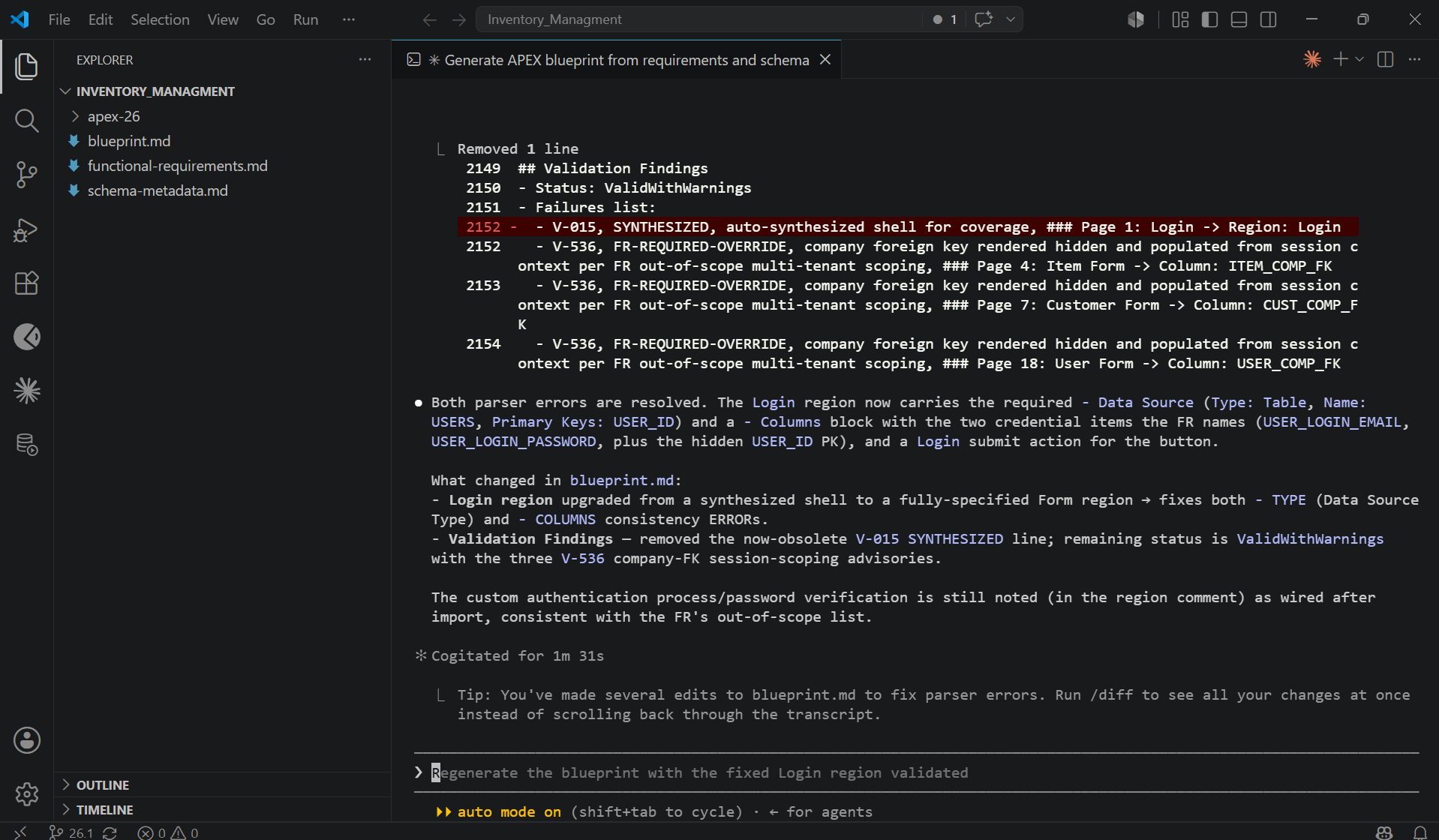
This cycle works every time. APEX produces a structured error log. Claude Code knows the blueprint grammar. Feed one to the other and the fix takes under two minutes.
What is the duplicate alias error in APEXlang?
Error 2 fixed. Blueprint reloaded. Application name confirmed as Inventory Management, Application ID left as auto-generated, and I clicked Import Application.
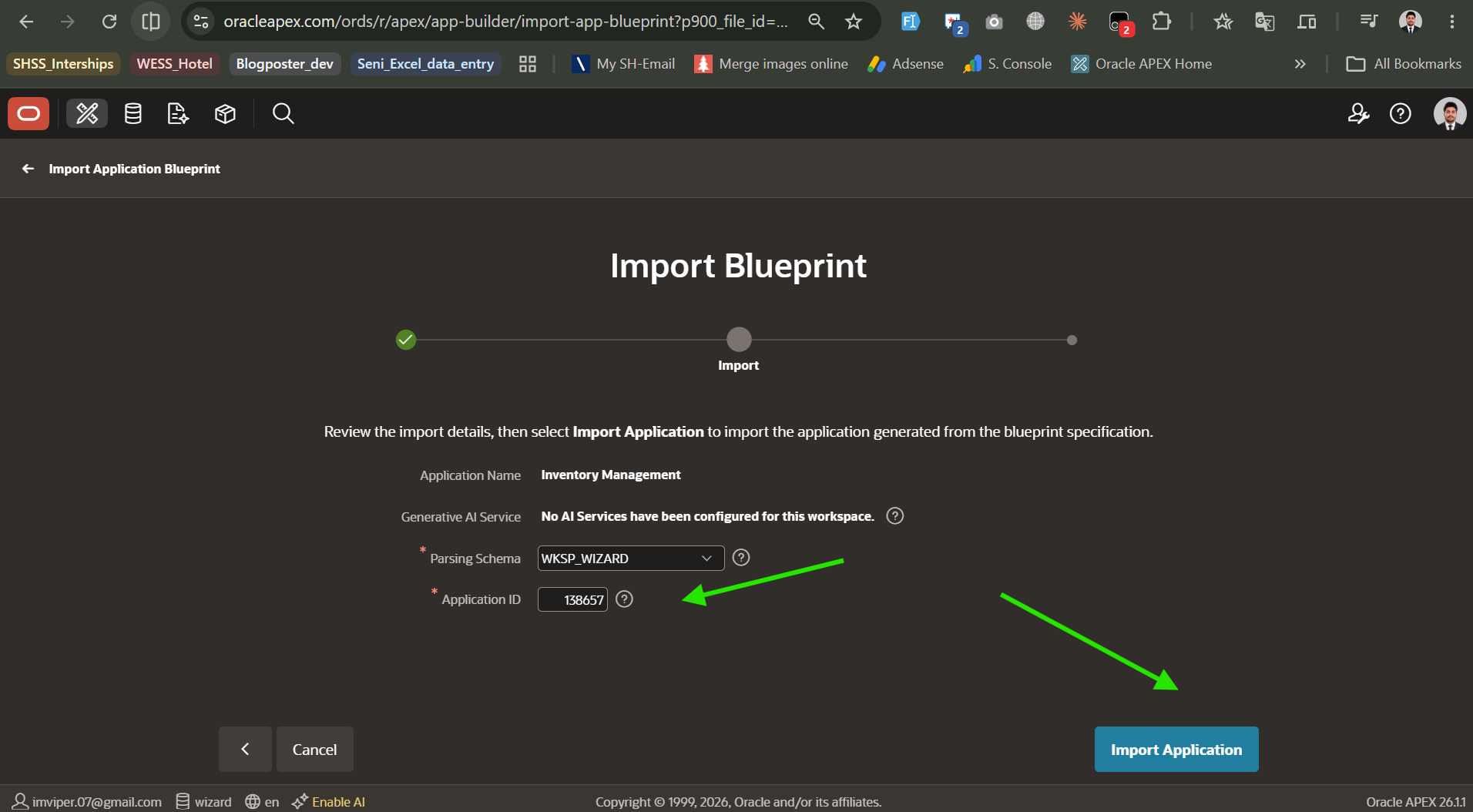
APEX got further this time. Then it stopped.
“Install Application Error. APEXlang validation found metadata inconsistencies. Duplicated component within parent scope. For properties: identification.alias: LOGIN”
Two files had the same alias: pages/p00001-login.apx and pages/p09999-login.apx.
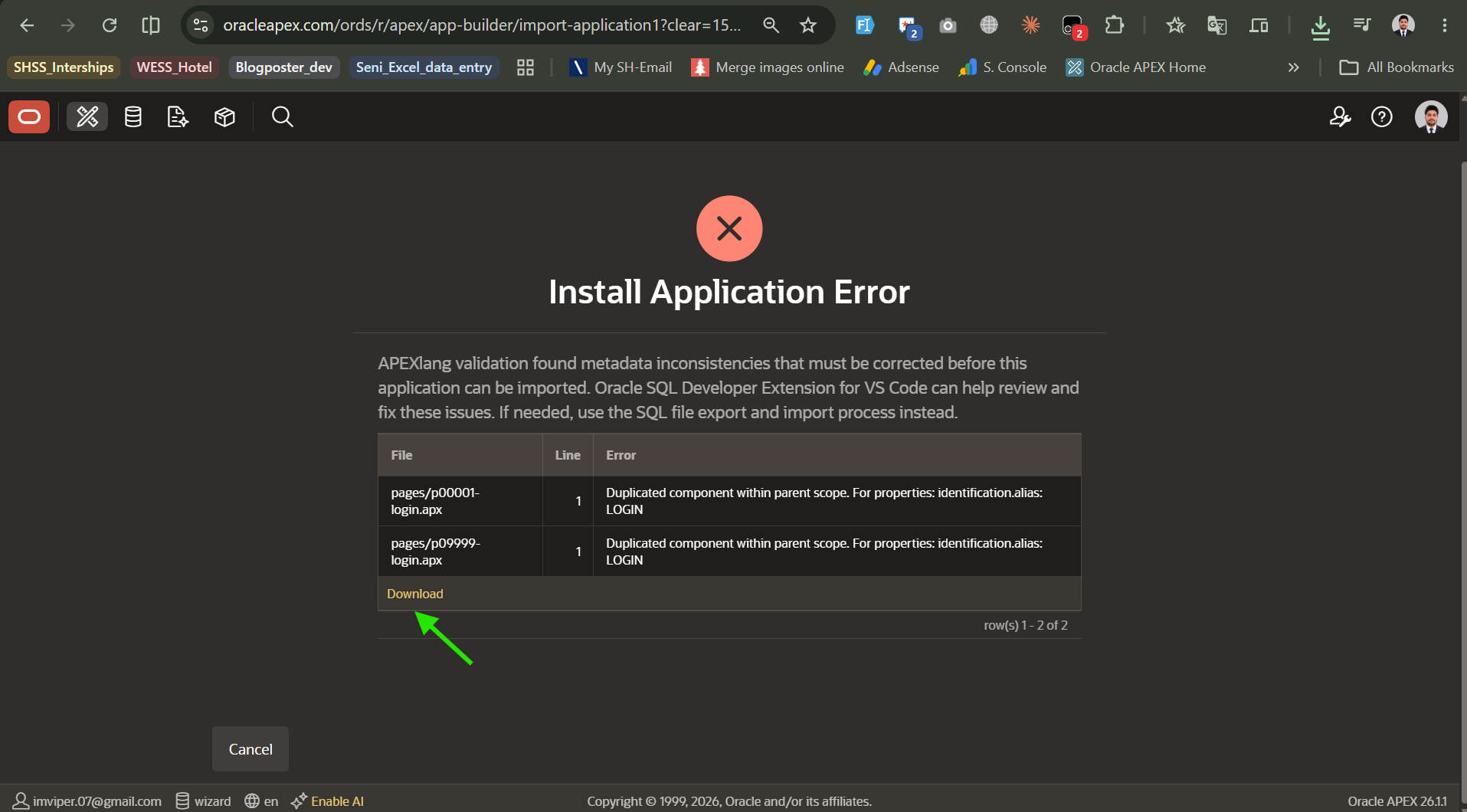
Every APEX application ships with a built-in authentication page on page 9999. Claude Code had generated a separate Page 1 Login in the blueprint. Two pages, same LOGIN alias. APEXlang refused to compile.
Downloaded the error file from the link on the error screen. Gave it to Claude Code. Fix took 1 minute and 51 seconds.
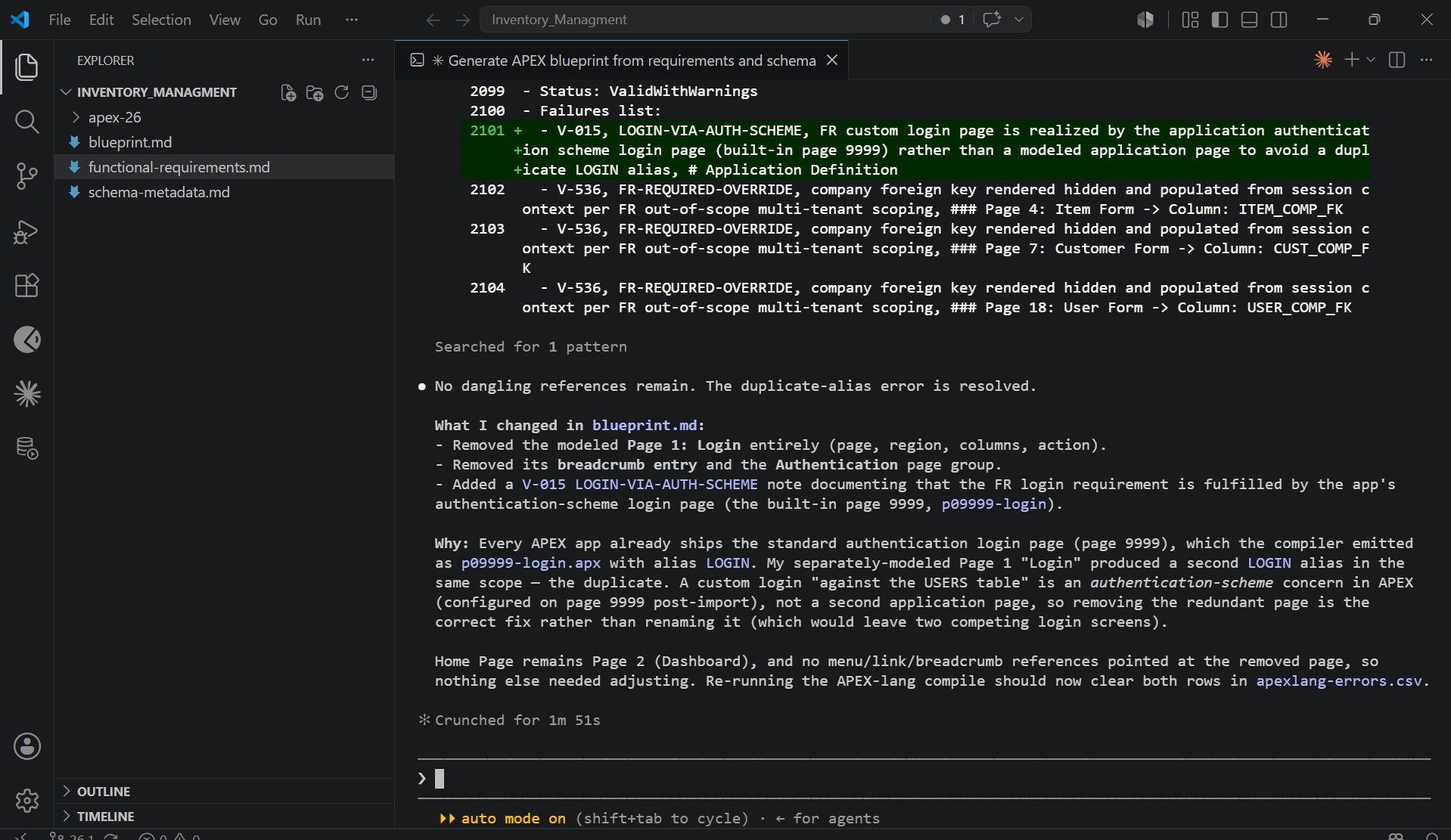
Claude removed Page 1 completely: the page itself, its Login region, all column definitions, the breadcrumb entry, and the auth group reference. It added a V-015 note explaining that the login requirement is covered by APEX’s page 9999, which the authentication scheme manages automatically. Dashboard moved to Home Page. Clean fix.
The running app
Import ran. No more errors.
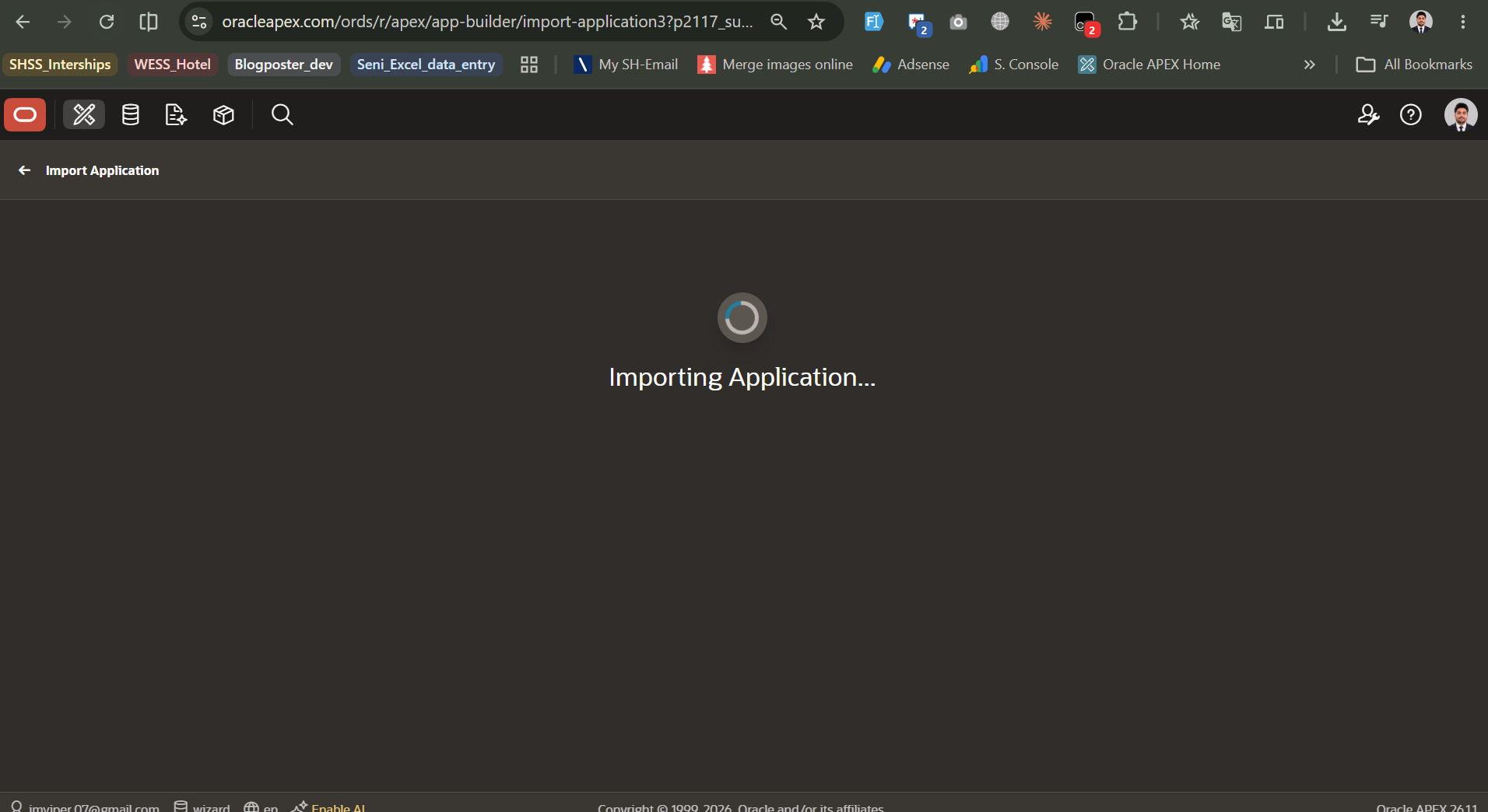
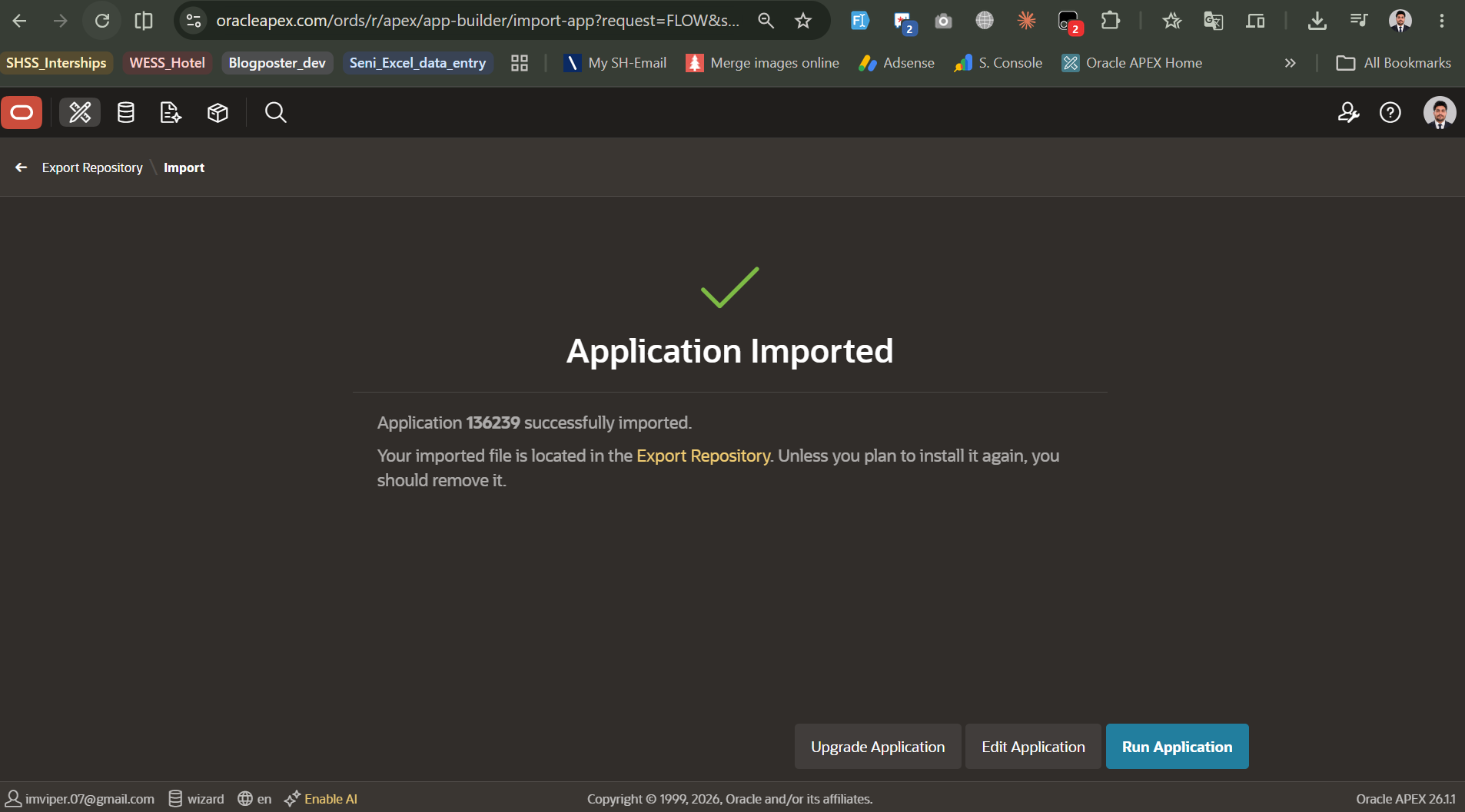
Run Application.
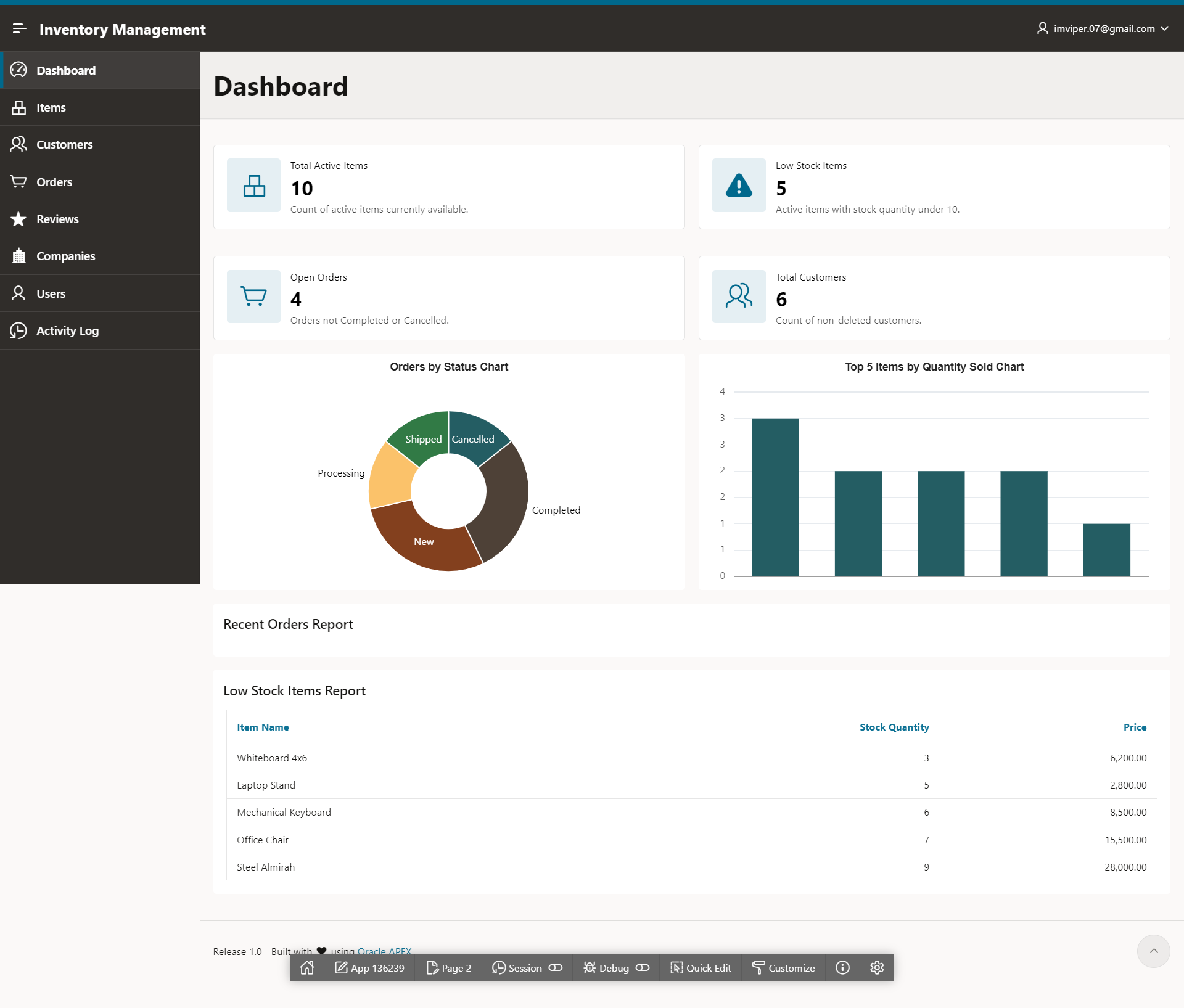
Dashboard with four KPI cards: Total Active Items (10), Low Stock Items (5), Open Orders (4), Total Customers (6). Orders by Status donut chart. Top 5 Items by Quantity Sold bar chart. Recent Orders Report. Low Stock Items Report. Navigation menu covering Dashboard, Items, Customers, Orders, Reviews, Companies, Users, and Activity Log.
No Page Designer. The whole thing came from a Markdown file, Claude Code, and three rounds of error fixing that I was not expecting but can now explain to anyone who hits the same wall.
Generation plus all three fix cycles: around 30 minutes total.
What do you do after the oracle apex blueprint import?
People sometimes expect a finished product. What you actually get is a working skeleton, and that is still a lot better than starting from an empty workspace.
Business logic is your job. The blueprint builds structure: pages, regions, navigation. PL/SQL processes, validations, and computation columns are not in scope. If you want to add error handling that survives background jobs and session timeouts, the centralized error logging framework fits well here.
For further feature development, Oracle has a set of APEXlang skills on GitHub. Use those to add functionality to the scaffolded app through the same agent workflow before you open Page Designer manually.
And keep the functional requirements document as the source of truth. When requirements change, update the spec and regenerate the blueprint. Do not patch blueprint.md by hand for structural changes. The AI will reintroduce its own patterns on the next run and overwrite yours.
Key takeaways
I went in expecting one smooth import. I got three errors instead. Looking back, none of them were hard. They were just undocumented. If I had known about the REST schema requirement upfront, the first run would have worked. The parse error and the duplicate alias both took under two minutes to fix once I fed the error log to Claude Code.
So the honest summary is: expect errors, have Claude Code open in the same session, and do not close the browser tab with the APEX error screen before you copy the log. That clipboard link saves you from retyping anything.
The generation itself is fast. Seven minutes for 19 pages is something I could not have done manually in an afternoon. But the app that comes out is a skeleton. Pages exist. Regions are wired to tables. Navigation works. Business logic, validations, PL/SQL processes, UI polish: none of that comes with the blueprint. Budget real time for that second phase.
One last thing. The schema annotations matter more than I expected. The better your table and column comments are, the better the AI maps regions to the right data sources. If you have not annotated your schema yet, do that before you write a single line of functional requirements. It pays back immediately.
If you are still working out where APEX fits in your stack before trying any of this, the article on why Oracle developers get stuck is worth reading first.
Hassan Raza
An Oracle ACE Associate and Senior Oracle Application Developer at S&H Software Solution. I am specialized in Oracle APEX, SQL, and PL/SQL and writes about Oracle development at oraclewithhassan.com