 By
By A step-by-step field report: enabling Oracle’s new Firebase-compatible BaaS toolkit on an existing Oracle AI Database 23ai + ORDS 26.1 setup running in separate Docker containers, including every command, every wrong turn, every error message, and a working Flutter app built on top of it at the end.
What is Oracle Backend for Firebase?
Oracle Backend for Firebase, internally referred to as Fusabase, is a free toolkit shipped as part of Oracle REST Data Services (ORDS) 26.1+. It gives mobile and web developers Firebase-style building blocks (Authentication, document-style database access, file storage, security rules, vector search, and an attestation-based App Trust layer) backed directly by an Oracle AI Database, with open-source client SDKs for iOS, Android, Flutter, and JavaScript/Web.
The key architectural point: if you already have ORDS deployed, you don’t need a separate managed plane or data plane. Fusabase runs directly on top of your existing Oracle Database + ORDS installation.
Environment & Prerequisites
| Component | Value |
|---|---|
| OS | Ubuntu 24.04 LTS |
| Database image | oracle/database:23.26.1-ee (Oracle AI Database 26ai / 23.26.1.0.0) |
| Database container name | database23 (internal hostname: database) |
| ORDS image | ords-26.1:latest (ORDS 26.1.2 Production) |
| ORDS container name | ords26 |
| Docker network | database-ords (shared, external network) |
| Internal DB port | 1521 (container-to-container) |
| External DB port | 1522 (host-mapped, for SQL Developer etc., not used for container-to-container traffic) |
| PDB name | ORCLPDB |
| ORDS config volume | named volume ords-config mounted at /etc/ords/config |
- Oracle AI Database 23.9 or later
- ORDS 26.1 or later
- An account with
SYS AS SYSDBAprivileges (or a dedicated ORDS installer user) - A database account with the
DBArole to prepare/enable the project schema - The ORDS configuration directory, host, port, and target PDB service name
docker-compose reference
Both containers already existed and were running well before this exercise. The goal was to add the Fusabase feature without breaking the existing APEX/ORDS setup.
Database container
version: '3.9'
services:
  database:
    image: oracle/database:23.26.1-ee
    container_name: database23
    hostname: database
    restart: always
    ports:
      - "1522:1521"
    environment:
      ORACLE_PWD: "<SYS_PASSWORD>"
      ORACLE_CHARACTERSET: "AL32UTF8"
      ORACLE_SID: "ORCL"
      ORACLE_PDB: "ORCLPDB"
    volumes:
      - oracle-23c-data:/opt/oracle/oradata
    networks:
      - database-ords
networks:
  database-ords:
    name: database-ords
volumes:
  oracle-23c-data:
    name: oracle-23c-data
ORDS container
version: '3.9'
services:
  ords:
    image: ords-26.1:latest
    container_name: ords26
    restart: always
    ports:
      - "8282:8080"
    environment:
      DBHOST: database
      DBPORT: 1521
      DBSERVICENAME: ORCLPDB
      ORACLE_PWD: <SYS_PASSWORD>
    volumes:
      - ords-config:/etc/ords/config
      - /home/apex26/images:/opt/oracle/apex/images
    networks:
      - database-ords
networks:
  database-ords:
    external: true
    name: database-ords
volumes:
  ords-config:
name: ords-configBoth containers sit on the same host, in separate containers, connected through a shared Docker network (
database-ords). Container-to-container traffic uses the internal hostname (database) and internal port (1521). The externally mapped port (1522) is irrelevant here. Because ords-config is a named Docker volume and not a container-local path, any configuration written into it, including the Fusabase install, survives container restarts and redeploys via Portainer.
1Check Database Compatibility
Connect as SYS in the CDB root and check the current COMPATIBLE setting and version:
docker exec -it database23 bash
sqlplus / as sysdba
show parameter compatible;
SELECT banner_full FROM v$version;NAME TYPE VALUE
----------------- ------- ------
compatible string 23.6.0
noncdb_compatible boolean FALSE
"Oracle AI Database 26ai Enterprise Edition Release 23.26.1.0.0 - Production
Version 23.26.1.0.0"COMPATIBLE = 23.6.0 is below the required 23.9.0. This needs to be raised before continuing.
Also confirm which container you’re currently in. This matters because COMPATIBLE can only be changed from CDB$ROOT:
SELECT SYS_CONTEXT('USERENV','CON_NAME') FROM DUAL;If this returns your PDB name (e.g. ORCLPDB) instead of CDB$ROOT, switch containers first:
ALTER SESSION SET CONTAINER = CDB$ROOT;These are service-affecting database changes. Test on a disposable clone first, arrange a maintenance window, and verify a recoverable database backup plus a separate protected TDE keystore backup before proceeding. Raising
COMPATIBLE removes downgrade/flashback options; MAX_STRING_SIZE=EXTENDED cannot be switched back to STANDARD. Review affected application objects and indexes, recompile invalid objects after the conversion, and use the restart procedure supported by your exact container image. A named data volume is persistence, not a tested recovery plan. See Oracle’s compatibility guidance and MAX_STRING_SIZE procedure and restrictions.
2Raise COMPATIBLE to 23.9.0
From CDB$ROOT:
ALTER SYSTEM SET COMPATIBLE='23.9.0' SCOPE=SPFILE;This setting only takes effect after an instance restart. The local SHUTDOWN/STARTUP sequence below succeeded in my recorded run. It interrupts database service; whether the container itself stays running depends on its entrypoint and restart policy. Confirm that behavior on your clone instead of assuming every database image behaves the same way.
Running
SHUTDOWN/STARTUP or ALTER PLUGGABLE DATABASE ... CLOSE/OPEN through a networked GUI tool (e.g. SQL Developer connecting over the mapped port) can hang or lose the connection mid state-change, because the instance passes through NOMOUNT → MOUNT → OPEN states. Do these operations directly inside the container via a local sqlplus session (bequeath connection) instead:
docker exec -it database23 sqlplus / as sysdbaSHUTDOWN IMMEDIATE;
STARTUP;Database closed.
Database dismounted.
ORACLE instance shut down.
ORACLE instance started.
Total System Global Area 1.8945E+10 bytes
Fixed Size 11500648 bytes
Variable Size 4026531840 bytes
Database Buffers 1.4898E+10 bytes
Redo Buffers 8855552 bytes
Database mounted.
Database opened.
NAME TYPE VALUE
---------- ------- --------
compatible string 23.9.03Enable Extended String Support (32k Types)
Check the current setting inside the PDB:
ALTER SESSION SET CONTAINER=ORCLPDB;
SELECT value FROM v$parameter WHERE name = 'max_string_size';Result: STANDARD, needs to become EXTENDED.
For the following PDB close/open sequence, switch to CDB$ROOT so the target PDB is explicit:
ALTER SESSION SET CONTAINER=CDB$ROOT;
ALTER PLUGGABLE DATABASE ORCLPDB CLOSE;If run through SQL Developer’s Script Runner,
ALTER PLUGGABLE DATABASE ... CLOSE can appear stuck for a long time, typically because active sessions (e.g. from an ORDS connection pool) are still attached to the PDB. Fix: cancel the running SQL Developer script, then check the real status directly from the container:
docker exec -it database23 sqlplus / as sysdba
SELECT name, open_mode FROM v$pdbs;In this run, the close actually completed fine in the background. The confirmation simply took a while to reach the GUI client.
Once the PDB is confirmed closed, open it in UPGRADE mode and run the Oracle-provided script:
ALTER PLUGGABLE DATABASE ORCLPDB OPEN UPGRADE;
ALTER SESSION SET CONTAINER=ORCLPDB;
ALTER SYSTEM SET max_string_size = extended;
@?/rdbms/admin/utl32k.sqlThe script prints several DOC> warning blocks. These describe what error would appear if a prerequisite were missing, they are not errors themselves. Look for the actual outcome lines: PL/SQL procedure successfully completed, 508 rows updated, Commit complete, No errors.
Then return the PDB to normal service and verify:
ALTER SESSION SET CONTAINER=CDB$ROOT;
ALTER PLUGGABLE DATABASE ORCLPDB CLOSE;
ALTER PLUGGABLE DATABASE ORCLPDB OPEN;
ALTER SESSION SET CONTAINER=ORCLPDB;
SELECT value FROM v$parameter WHERE name = 'max_string_size';EXTENDED4Configure the TDE Wallet
Check whether a working wallet already exists:
ALTER SESSION SET CONTAINER=CDB$ROOT;
SELECT WRL_TYPE, WRL_PARAMETER, STATUS FROM V$ENCRYPTION_WALLET;WRL_TYPE FILE
WRL_PARAMETER /opt/oracle/admin/ORCL/wallet
STATUS NOT_AVAILABLEA path is configured but nothing usable exists there yet. Confirmed on disk: the target directory doesn’t even exist (only an unrelated xdb_wallet folder was present, plus an unrelated application-level wallet folder at /opt/oracle/oradata/wallet used by other integrations. Do not confuse the two, they are unrelated to TDE).
The original run used
/opt/oracle/admin/ORCL/wallet, outside the Compose file’s /opt/oracle/oradata volume. A restart usually preserves a container’s writable layer; deleting/replacing that container does not. Losing TDE keys can make encrypted data inaccessible. The corrected new-wallet commands below use a separate tde-wallet directory inside the existing persistent data mount. First confirm the mount actually exists and that this is a new, unused directory. If you already have a keystore, stop: do not recreate it, overwrite it, or casually change its path. Follow Oracle’s supported keystore migration procedure with your DBA and retain the original keys and backups. See Docker volume lifecycle and Oracle keystore management.Create the new wallet directory with restrictive ownership and permissions (inside the container, plain shell). This differs from the path used in the original run:
mkdir -p /opt/oracle/oradata/tde-wallet
chown oracle:oinstall /opt/oracle/oradata/tde-wallet
chmod 700 /opt/oracle/oradata/tde-walletBack in sqlplus, set wallet_root and restart the instance for it to take effect:
ALTER SYSTEM SET wallet_root='/opt/oracle/oradata/tde-wallet' SCOPE=SPFILE;
SHUTDOWN IMMEDIATE;
STARTUP;
show parameter wallet_root;Then configure and open the keystore:
ALTER SYSTEM SET tde_configuration='KEYSTORE_CONFIGURATION=FILE' SCOPE=BOTH;

ADMINISTER KEY MANAGEMENT CREATE KEYSTORE
  IDENTIFIED BY "<strong_keystore_password>";

ADMINISTER KEY MANAGEMENT SET KEYSTORE OPEN
  IDENTIFIED BY "<strong_keystore_password>" CONTAINER=ALL;

ADMINISTER KEY MANAGEMENT SET KEY
  IDENTIFIED BY "<strong_keystore_password>" WITH BACKUP CONTAINER=ALL;

SELECT WRL_TYPE, WRL_PARAMETER, STATUS FROM V$ENCRYPTION_WALLET;WRL_TYPE FILE
WRL_PARAMETER /opt/oracle/admin/ORCL/wallet/tde/
STATUS OPENWith the corrected new-wallet path, verify WRL_PARAMETER points to /opt/oracle/oradata/tde-wallet/tde/ and the required containers report OPEN. This path correction was documentation-reviewed; it is not a claim of a new database execution.
Use a real, private password for
<strong_keystore_password> in any environment beyond throwaway local dev. Never reuse example or tutorial passwords, and never publish the real value.
Backup and restart check: keep an access-controlled backup of the password-protected keystore and its password separately from the database volume. A WITH BACKUP copy in the same volume is not protection from losing that volume. This example creates a password-protected wallet; plan how an authorized operator will reopen it after restart, or follow Oracle’s appropriate auto-login design. On a disposable clone, verify container replacement with the same volume, keystore reopening, and restoration of both database and keystore backups before relying on this layout.
5Create the Project-Owning Schema
Every Fusabase project is owned by exactly one schema. Create a dedicated tablespace and user inside the PDB:
ALTER SESSION SET CONTAINER=ORCLPDB;

CREATE TABLESPACE fusabase_tbs
  DATAFILE 'fusabase_tbs01.dbf' SIZE 50M AUTOEXTEND ON
  EXTENT MANAGEMENT LOCAL SEGMENT SPACE MANAGEMENT AUTO;

CREATE USER fusabase_user IDENTIFIED BY "<password>"
  DEFAULT TABLESPACE fusabase_tbs
  QUOTA UNLIMITED ON fusabase_tbs;

GRANT CREATE SESSION TO fusabase_user;
GRANT RESOURCE TO fusabase_user;
GRANT DBFS_ROLE TO fusabase_user;
Verify:
SELECT username, default_tablespace, account_status
FROM dba_users WHERE username = 'FUSABASE_USER';

SELECT tablespace_name, status
FROM dba_tablespaces WHERE tablespace_name = 'FUSABASE_TBS';

SELECT granted_role FROM dba_role_privs WHERE grantee = 'FUSABASE_USER';FUSABASE_USER exists, tablespace FUSABASE_TBS is ONLINE, roles RESOURCE and DBFS_ROLE granted.6Create a Dedicated DBA Admin User
The schema-enablement procedure (OBAAS_ADMIN.OBAAS_ENABLE_SCHEMA) must not be run as SYS. Oracle’s own documentation flags an ORA-06598 error in that case. Create a separate account with the DBA role instead:
CREATE USER fb_admin IDENTIFIED BY "<password>";
GRANT DBA TO fb_admin;
GRANT CREATE SESSION TO fb_admin;
Log in as this new user, over the network this time, to confirm listener and service connectivity, not just a local bequeath connection:
sqlplus fb_admin@localhost:1521/ORCLPDBIf your password contains a literal
! (e.g. Password123!) and you try to pass it inline on the command line (sqlplus user/password!@host...), Bash’s history expansion intercepts the ! and throws event not found. Two fixes:
- Disable history expansion for the session:
set +H - Preferred: don’t put the password on the command line at all. Connect with just the username and let SQL*Plus prompt for the password interactively:
sqlplus fb_admin@localhost:1521/ORCLPDB. This also keeps the password out of your shell history.
7Enable the Feature in ORDS
Move to the ORDS container, a separate container from the database, connected via the shared database-ords Docker network:
docker exec -it ords26 bash
ords --versionORDS: Release 26.1 Production ... Oracle REST Data Services 26.1.2.r1401916, meets the 26.1+ requirement.Before running anything, verify where the ORDS config actually lives. This determines whether the install survives a container recreate:
docker inspect ords26 --format '{{ range .Mounts }}{{ .Source }} -> {{ .Destination }}{{ println }}{{ end }}'/home/apex26/images -> /opt/oracle/apex/images
/var/lib/docker/volumes/ords-config/_data -> /etc/ords/config /etc/ords/config is mounted from a named Docker volume. Configuration in that retained volume persists across container replacement; back it up and review changes before modifying it.
Run the interactive installer:
ords --config /etc/ords/config fusabase installWalk through the interactive prompts:
- Select the database pool. ORDS auto-detects the existing pool from its own saved configuration:
[1] default    jdbc:oracle:thin:@//database:1521/ORCLPDB
Choose [1]: 1
This is the same connection ORDS has already been using in production for the existing APEX app, confirmed independently with:
docker exec ords26 env | grep DB # DBHOST=database # DBPORT=1521 # DBSERVICENAME=ORCLPDB - Feature configuration. Accept the defaults:
[1] Enable Feature FUSABASE: Yes [2] Encryption passphrase for FUSABASE: <generate> Choose [A]: A - Administrator credentials:
Enter the administrator username: sys as sysdba
Enter the database password for sys as sysdba: <type manually>
2026-08-05T14:21:18.184Z SEVERE   Failed to connect to user: sys as sysdba
jdbc:oracle:thin:@//database:1521/ORCLPDB
ORA-01017: invalid credential or not authorized; logon denied
Observed: my first sign-in attempt failed. Typing the password again succeeded; that does not establish that pasting is generally unsafe or prove the original cause. Check the account, target service/PDB, password case and copied whitespace before resetting credentials.
Result in this run: after retrying the installer, installation completed successfully:
Retrieving information.
The setting named: feature.fusabase was set to: true in configuration: default
The setting named: fusabase.secret.encKey was set to: ****** in configuration: default
Installing Oracle Backend for Firebase version 26.1.1-260430 in ORCLPDB
Completed installation for Oracle Backend for Firebase version 26.1.1-260430. Elapsed time: 00:00:05.8018Enable the Schema for Fusabase
Now that the installer has created the OBAAS_ADMIN package, log in as the dedicated DBA user, not SYS, and run the enablement procedure:
docker exec -it database23 bash
sqlplus fb_admin@localhost:1521/ORCLPDB
BEGIN
OBAAS_ADMIN.OBAAS_ENABLE_SCHEMA(
'FUSABASE_USER',
'BASE_PATH',
'fusabase_user',
FALSE
);
END;
/
COMMIT;PL/SQL procedure successfully completed.Confirm the schema received the BAAS_ROLE:
SELECT granted_role FROM dba_role_privs WHERE grantee = 'FUSABASE_USER';GRANTED_ROLE
------------
RESOURCE
DBFS_ROLE
BAAS_ROLE9Restart ORDS So the Console Tile Appears
Opening the ORDS landing page immediately after installation did not show an “Oracle Backend for Firebase” tile yet. ORDS loads its available Console tiles at process start, before the feature was enabled.
http://<host>:8282/ords/_/landingIn my run, restarting the ORDS container made the tile appear. Restarting interrupts active requests. Confirm the configuration volume and recovery plan first; only data actually stored in a retained volume survives container replacement:
docker restart ords26
docker logs -f ords26   # watch until it's up, then Ctrl+C
Reload the landing page. The “Oracle Backend for Firebase” tile now appears.
10Sign In to the Console (and Fix “Invalid Credentials”)
Open the Console sign-in page. This may sit behind a reverse proxy or custom domain rather than the raw host:port. That’s fine, it’s the same ORDS instance:
https://<your-domain-or-host>/ords/baas-consoleThe sign-in form asks for three things:
- Path (Advanced) — the ORDS schema mapping path/alias. Use
fusabase_user. - Username —
fusabase_user - Password — the schema’s database password
Invalid credentials
If your ORDS schema alias is different from your username, you
can set it using the "Path" input in the "Advanced" options
Observed: sign-in failed with the Path and Username set to fusabase_user. The retry below succeeded, but the error alone does not prove a typo or special-character problem. Check the schema alias, account status, target database and supplied credentials first.
What I did in this run: I reset the schema password and signed in again. A password reset can break other clients using that account, so coordinate it rather than treating it as the first troubleshooting step:
docker exec -it database23 sqlplus / as sysdbaALTER SESSION SET CONTAINER=ORCLPDB;
ALTER USER fusabase_user IDENTIFIED BY "<new_password>"; Then sign in again with Path fusabase_user, Username fusabase_user, and the new password. This verified successful sign-in with the replacement credential; it did not establish the exact cause of the earlier failure.
11Create Your First Project in the Console
With the sign-in issue resolved, the Console loads to an empty “Your projects” screen. This is the actual Oracle Backend for Firebase UI, running on top of the exact stack configured in Steps 1 through 10.
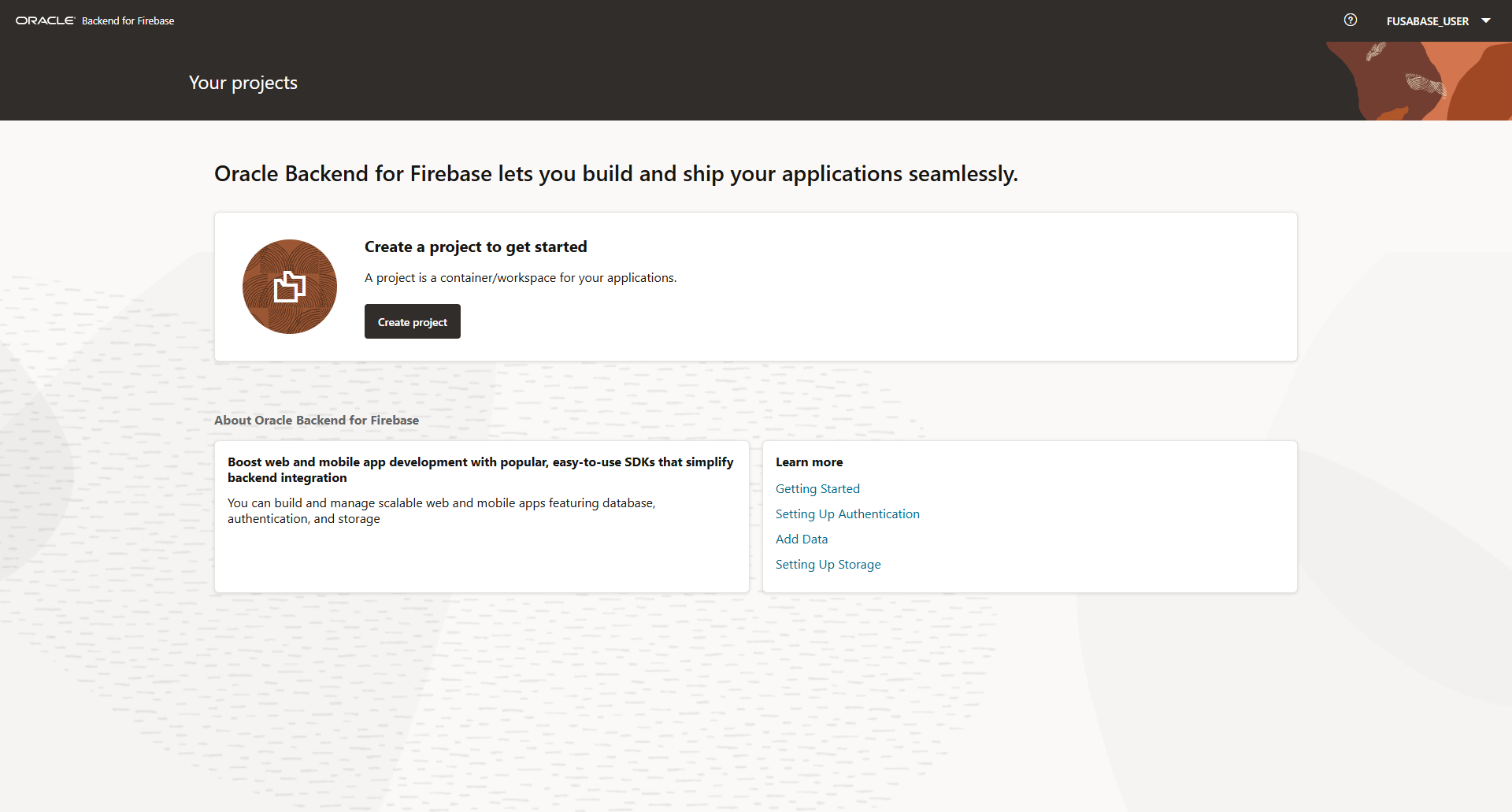
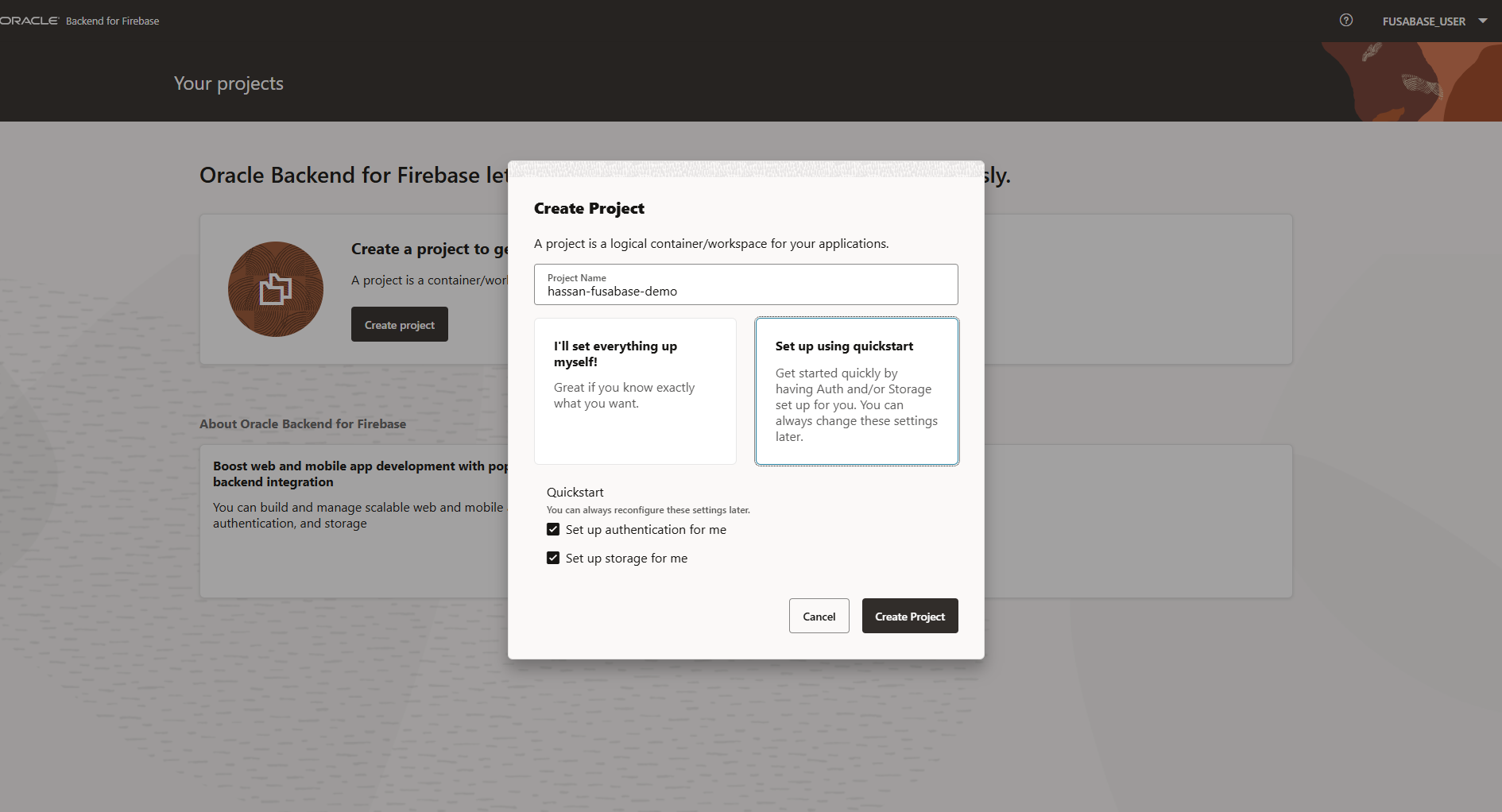
Click Create project. Name it, then choose between manual setup and quickstart. Quickstart sets up Authentication and Storage for you automatically, both can be reconfigured later:
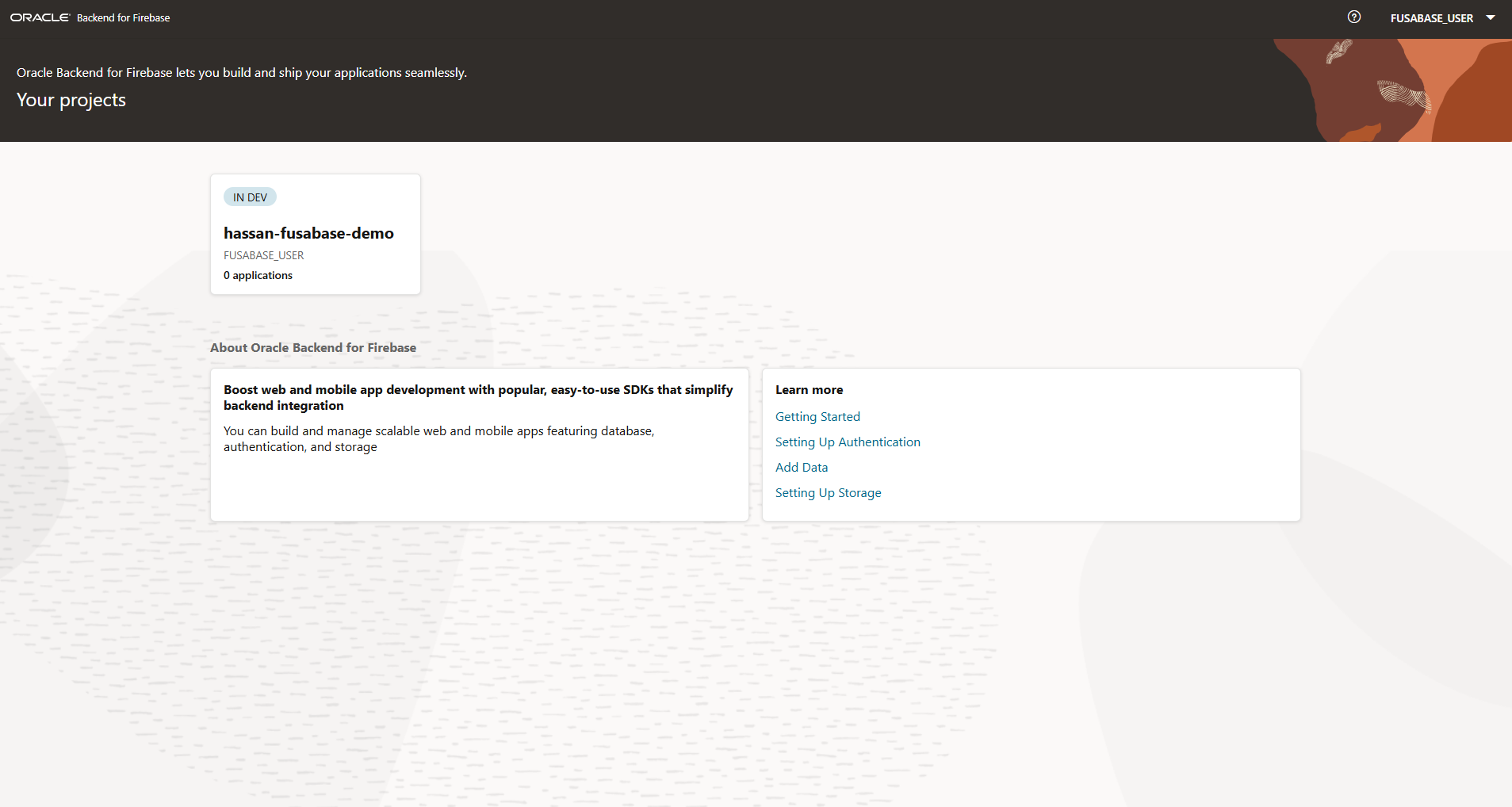
The project appears on the dashboard tagged IN DEV, with 0 applications registered so far. This status maps directly to the schema you enabled with OBAAS_ENABLE_SCHEMA in Step 8:
12Register a Flutter App and Install the SDK
Click into the project. The Overview page prompts you to add an application, with buttons for Web, Android, iOS, and Flutter. For this walkthrough, the target was a Flutter app talking to Oracle instead of Firebase:
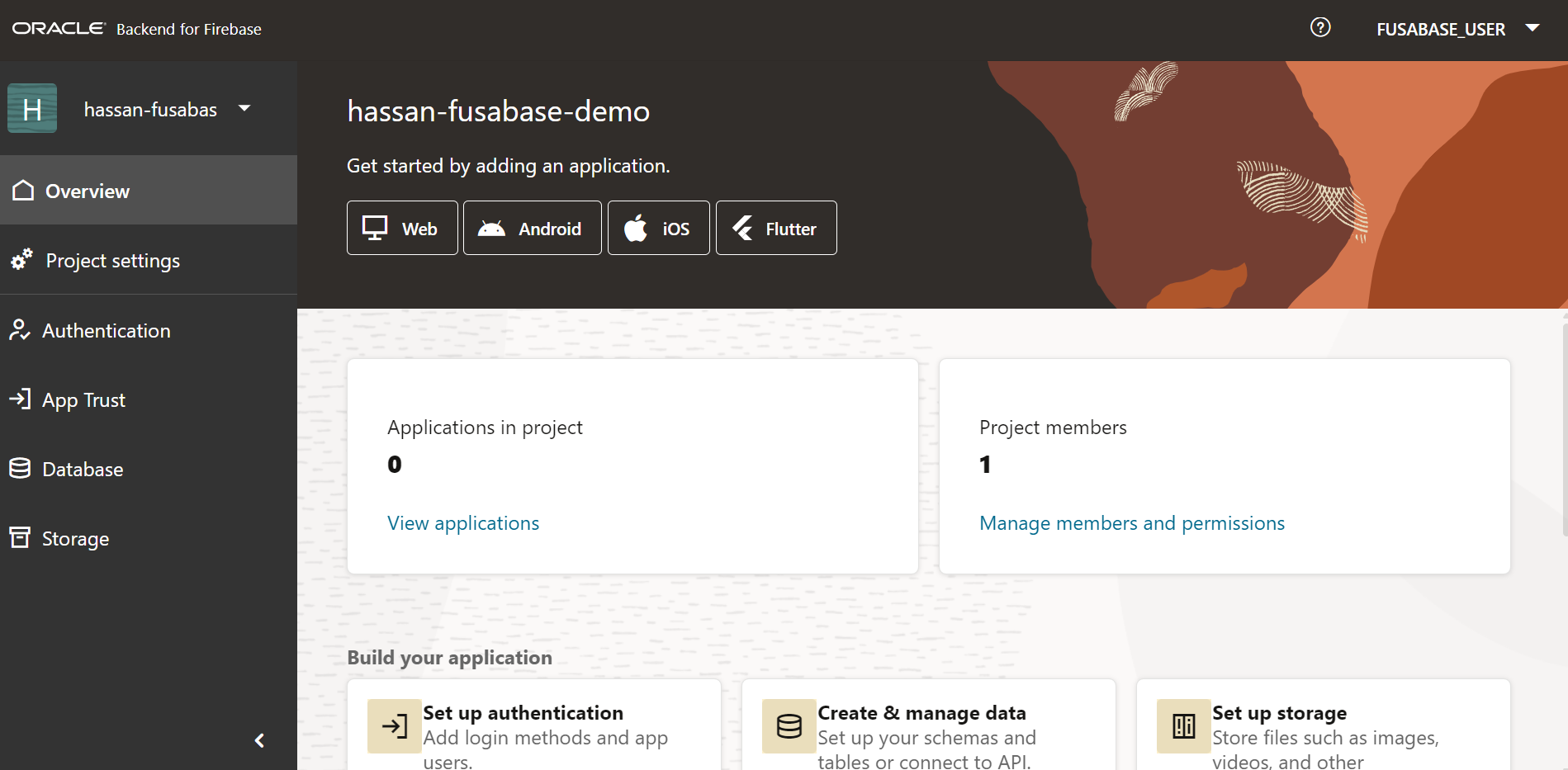
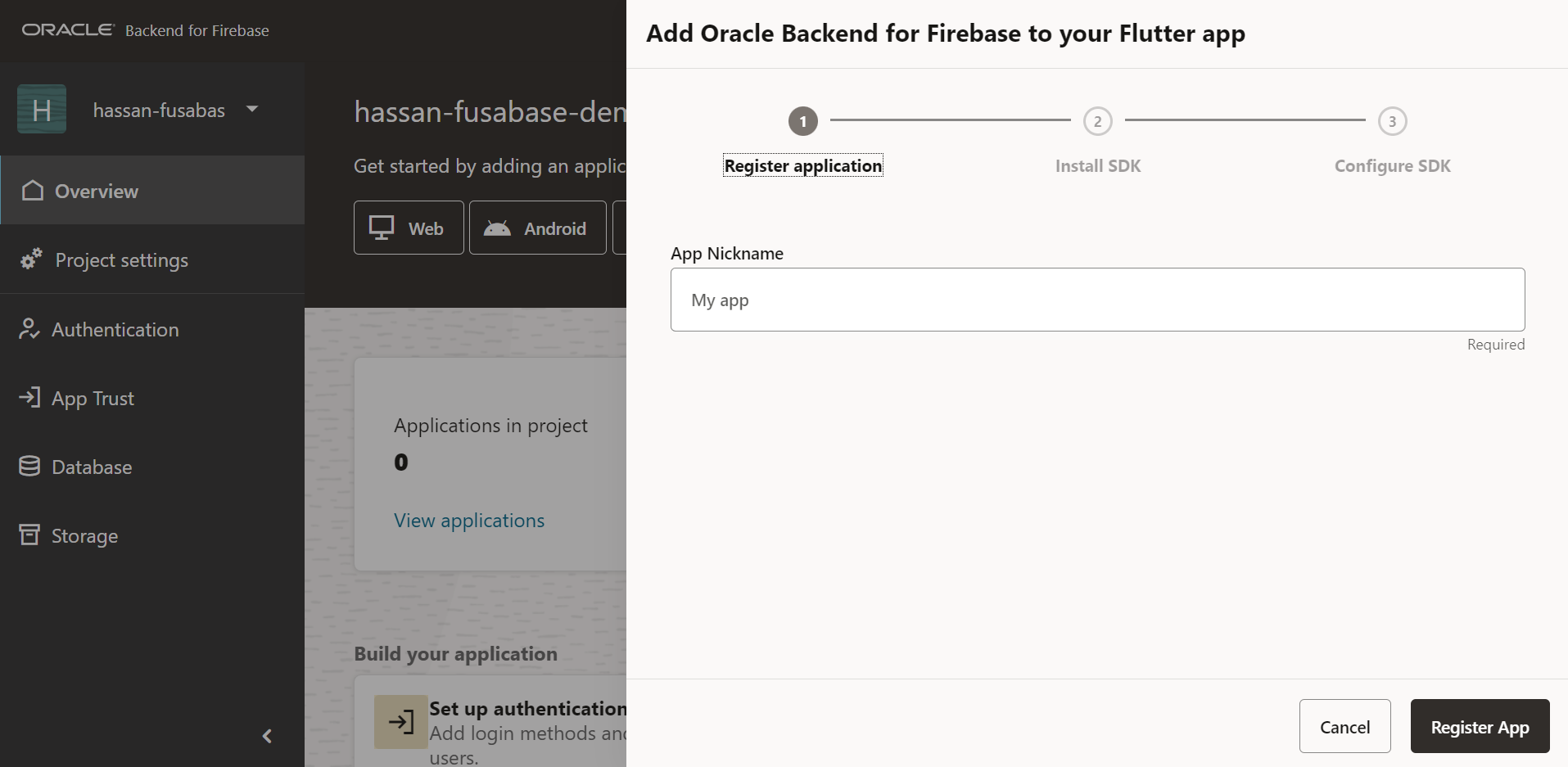
Clicking Flutter opens a three-step wizard: Register application, Install SDK, Configure SDK. Step 1 just asks for an app nickname:
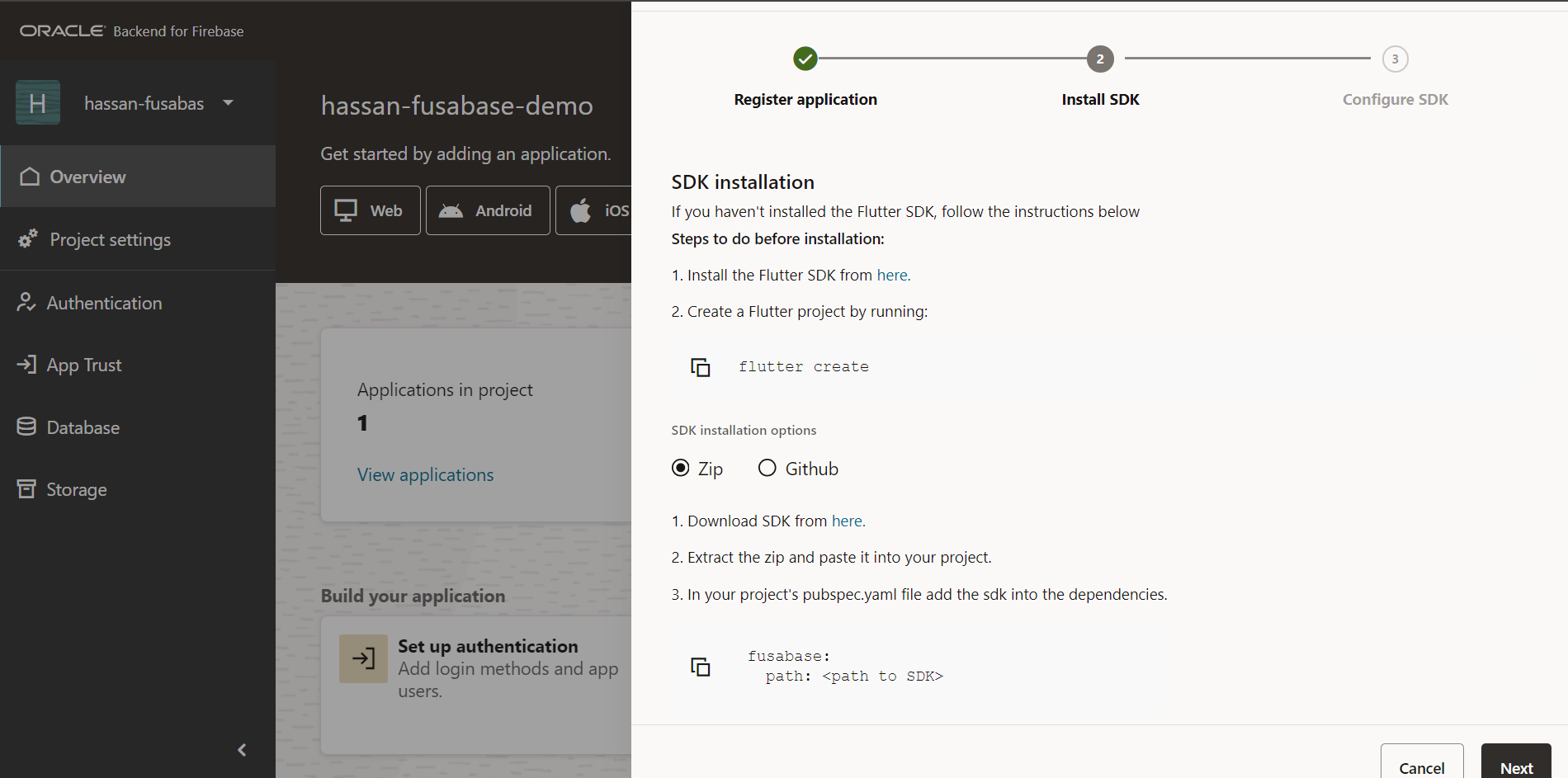
Step 2 offers two ways to install the SDK. The ZIP option downloads the SDK and references it by local path in pubspec.yaml:
The GitHub option is simpler if you don’t want to vendor the SDK locally. It just adds a Git dependency:
dependencies:
  fusabase:
    git:
      url: https://github.com/oracle/fusabase-flutter-sdk.git
      ref: "<sdk-tag-from-your-console>"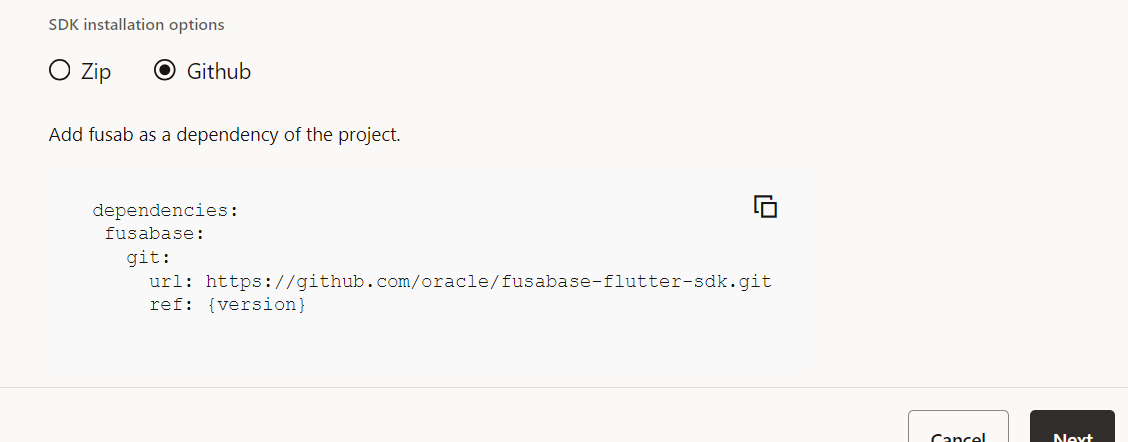
13Configure the SDK with Real Dart Code
The console generates these values for your project; the published example below redacts them. Replace every placeholder with your own generated configuration. For the Git dependency above, choose the SDK tag shown by your console and pin it in pubspec.yaml; <sdk-tag-from-your-console> is not a real tag. The original field report did not record a tested SDK Git tag. Check the official Flutter SDK for that release before copying initialization calls.
import 'package:fusabase/oracledb.dart';
import 'package:fusabase/core.dart';
import 'package:fusabase/auth.dart';
import 'package:fusabase/storage.dart';

Map<String, dynamic> options = {
    "schema": "fusabase_user",
    "app_name": "demoapp",
    "app_type": "DART",
    "app_id": "<your_app_id>",
    "objs_type": "dbfs",
    "project_id": "<your_project_id>",
    "storage_bucket": "<your_storage_bucket>",
    "auth_type": "base",
    "auth_id": "<your_auth_id>",
    "ords_host": "https://<your-ords-host>/ords/fusabase_user/"
};

FusabaseOptions fusabaseConfig = FusabaseOptions(options);

// initialize app
FusabaseApp fusabaseApp = Fusabase.initializeApp(options:fusabaseConfig);
// get database instance
final fusabaseDB = FusabaseOracledb.instance;
// get object store instance
final fusabaseStorage = FusabaseStorage.instance;
// get auth instance
final fusabaseAuth = FusabaseAuth.instance;
For Android specifically, the wizard also generates a manifest snippet for the OAuth callback activity. This has to go into AndroidManifest.xml or sign-in redirects silently fail:
<activity
    android:name="com.oracle.mobile.fusabase.flutter.FusabaseCallbackActivity"
    android:exported="true">
    <intent-filter android:label="fusabase_dart">
        <action android:name="android.intent.action.VIEW" />
        <category android:name="android.intent.category.DEFAULT" />
        <category android:name="android.intent.category.BROWSABLE" />
        <data android:scheme="baasmobile<app id in lowercase>" />
    </intent-filter>
</activity>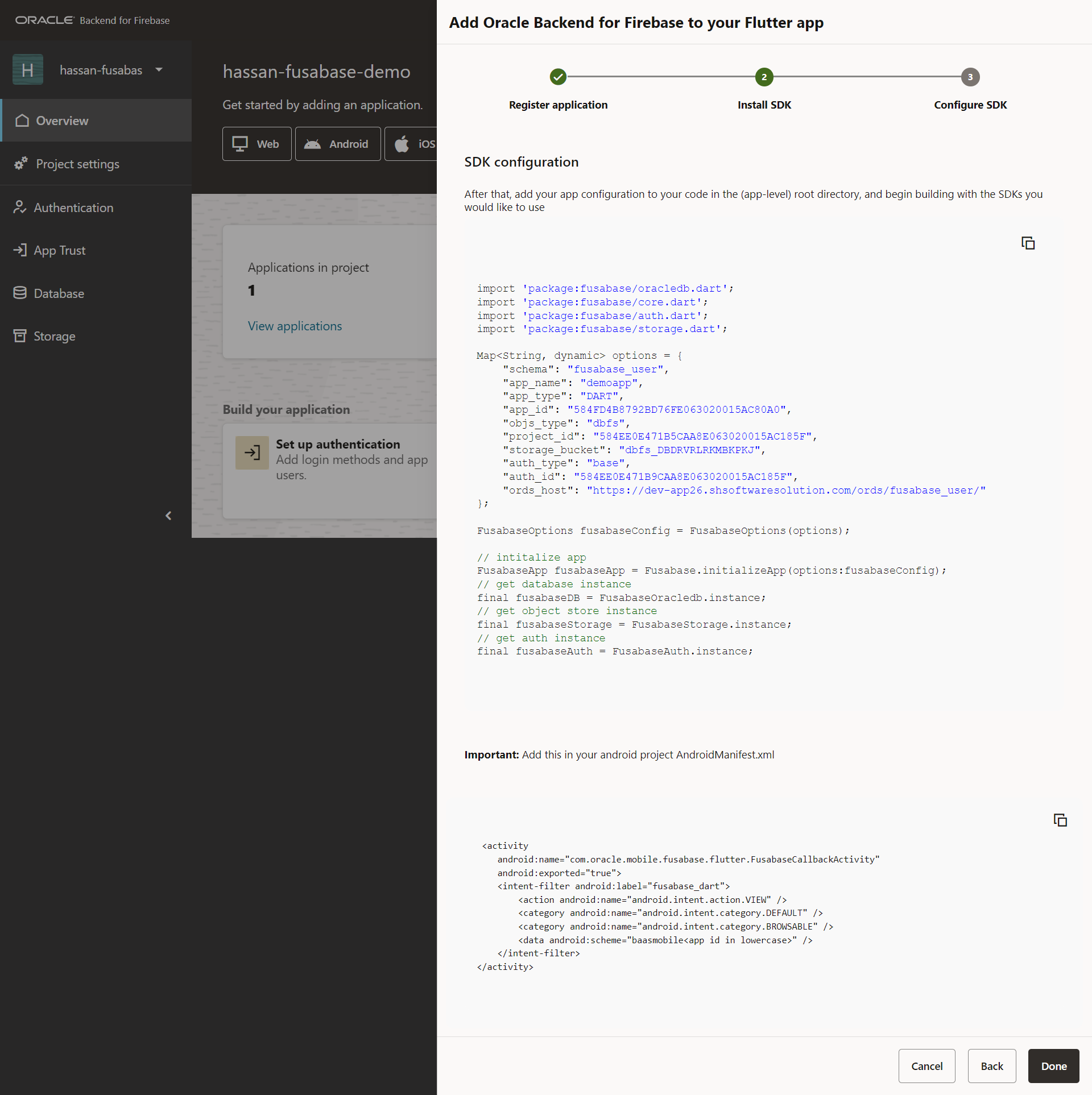
ords_host in this generated code points at /ords/fusabase_user/, the exact schema alias created back in Step 5 and enabled in Step 8. Everything from the low-level SQL work earlier in this post surfaces directly in this one config object.
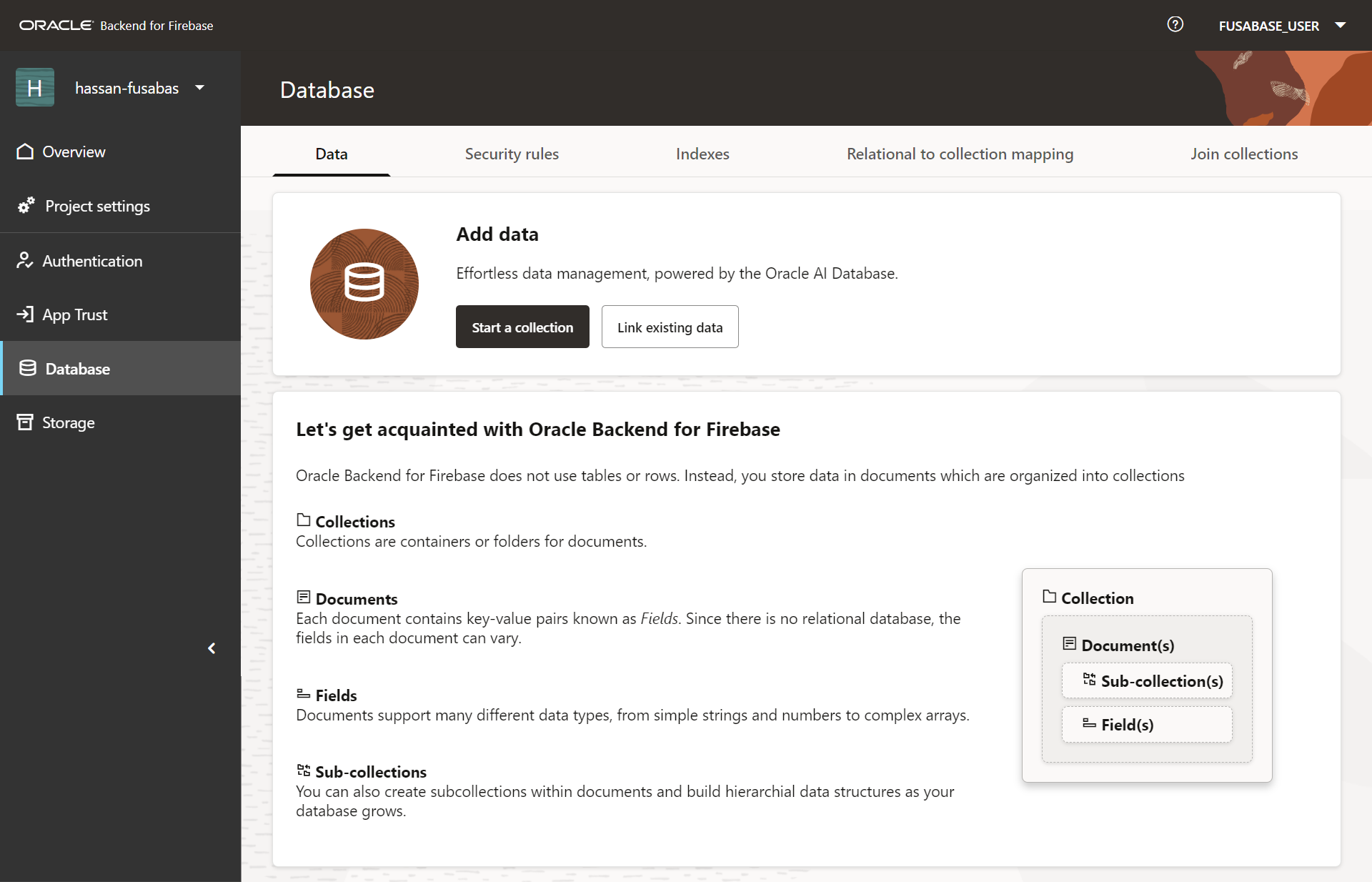
14Understand Collections, Documents, and Security Rules
Before writing any app code, it is worth opening the Database tab. The client SDK exposes a document/collection interface similar to Firestore; the underlying persistence still uses Oracle Database storage. This describes the application-facing data model, not an absence of database tables:
By default, all data is private. The Security rules tab is where you decide who can read, write, update, or delete. The default rule blocks everything until you explicitly allow it:
match /{document=**} { allow read, write: if false; }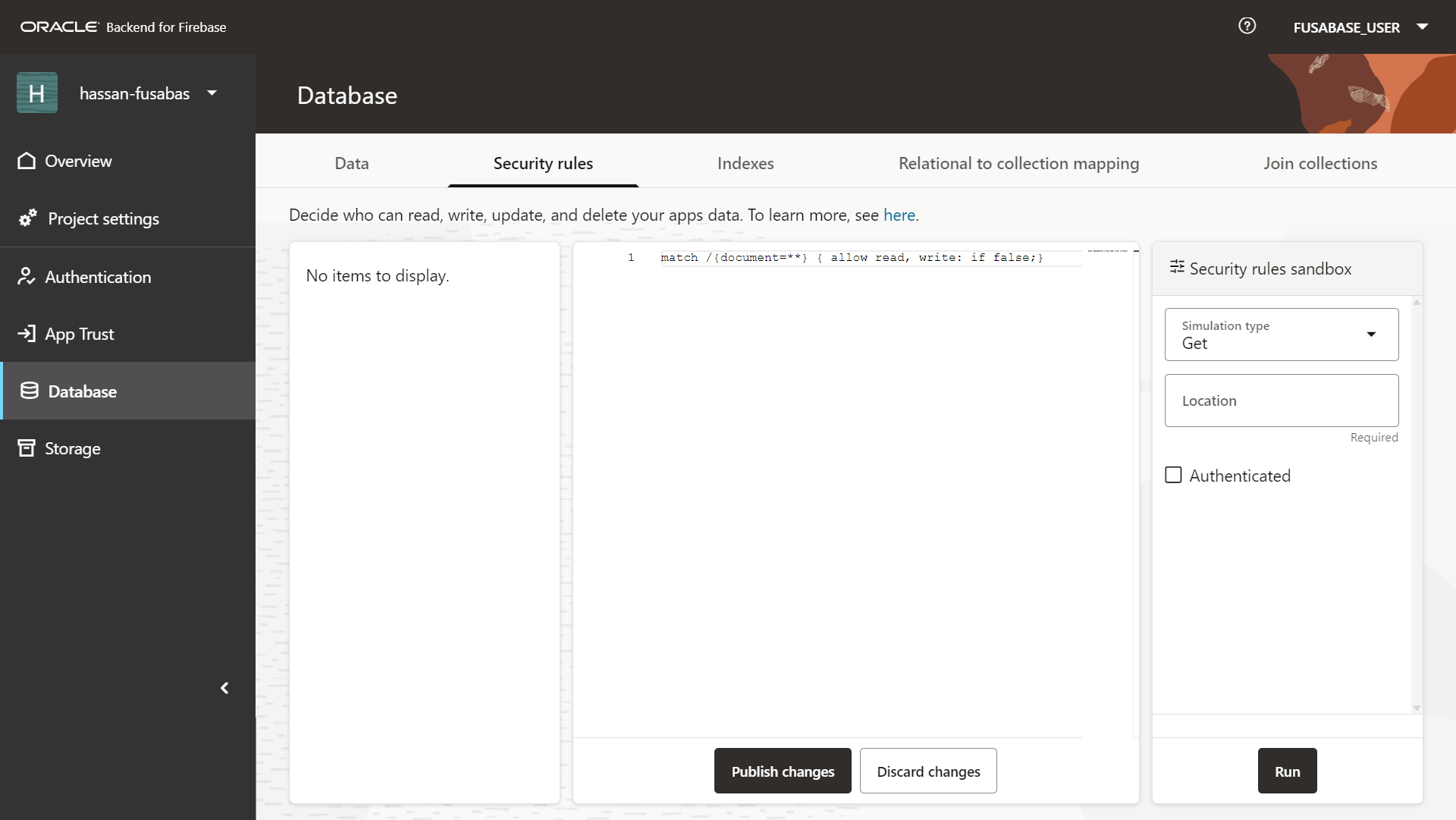
The sandbox panel on the right lets you simulate a request (Get, List, Create, and so on) against a specific document path, with or without authentication, before you commit to a rule change. That is worth using before opening anything up in a real project.
15The Notes App I Built and Verified
Scope: this is a setup walkthrough and a record of the notes app I built, not a complete distributable notes application. It does not include the full CRUD/authentication source, project security rules or pinned dependency set. The screenshots preserve the original demonstration; recreate and test those missing application pieces before using it as an implementation guide.
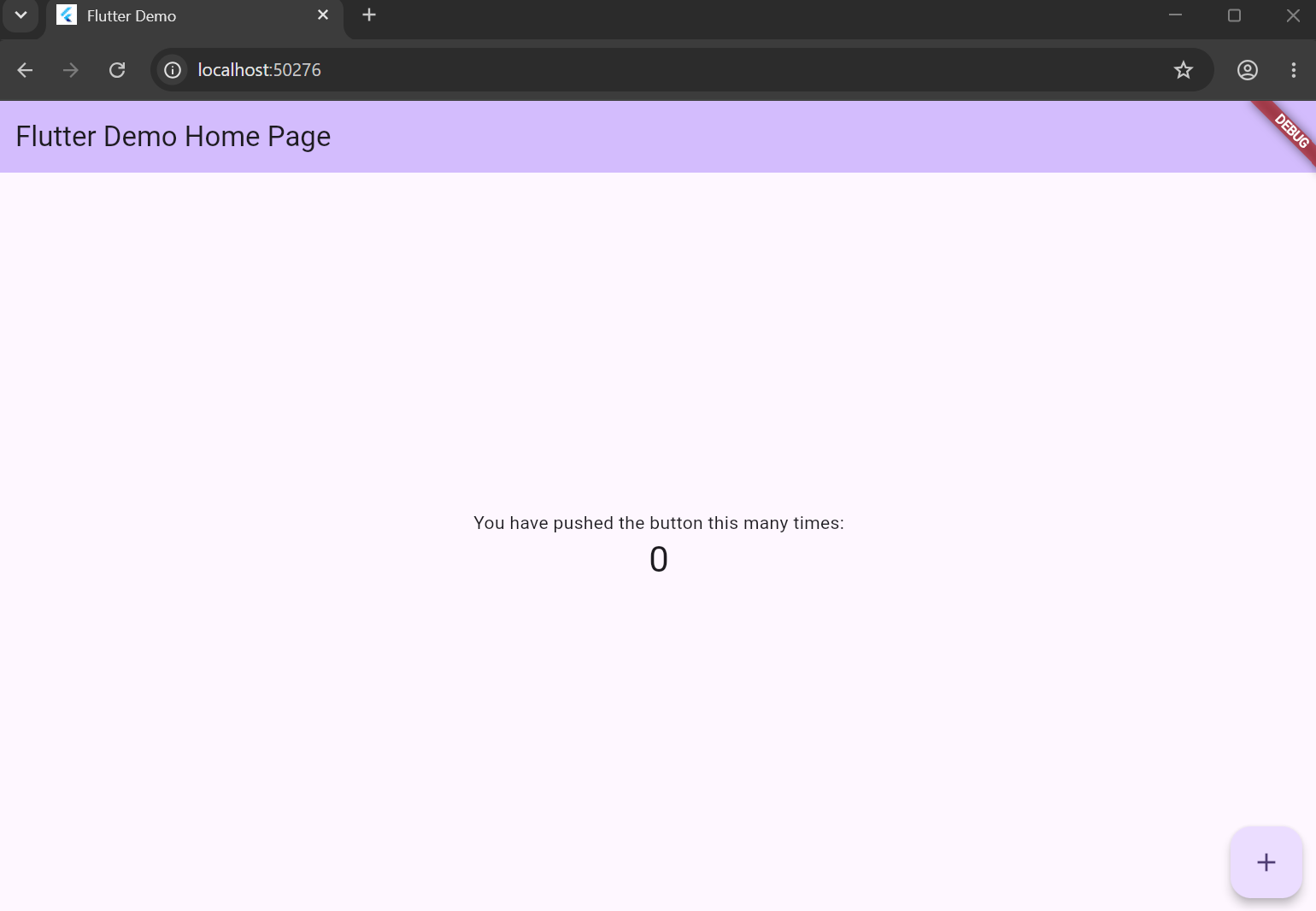
With the SDK wired in, the default Flutter counter demo runs first, just to confirm the toolchain and the Fusabase initialization code both work before writing real features:
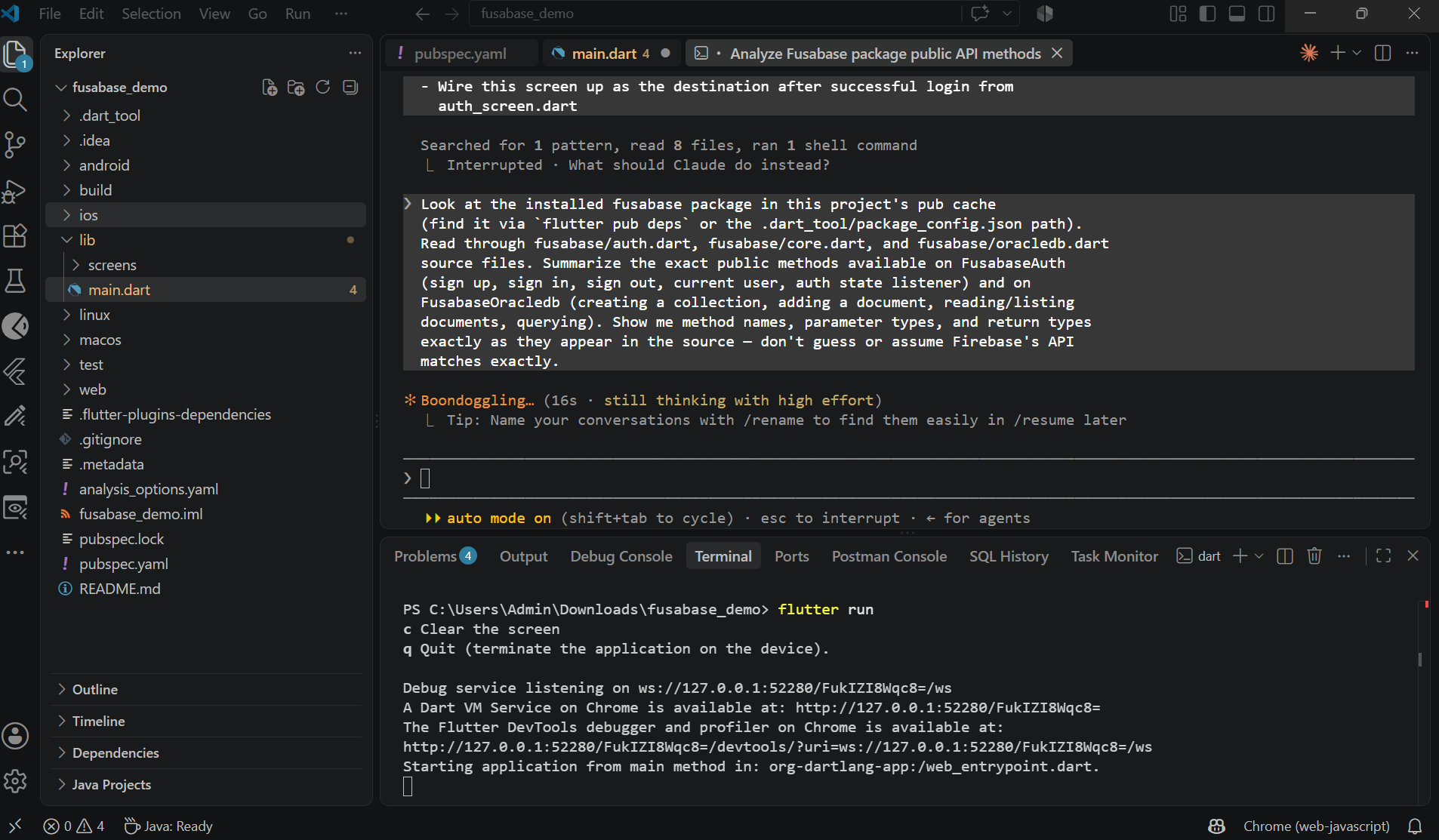
From there, the actual feature work (a simple notes app backed by FusabaseOracledb and FusabaseAuth) went faster with an AI coding agent reading the SDK’s own source directly, rather than guessing at an API surface designed to resemble Firebase’s:
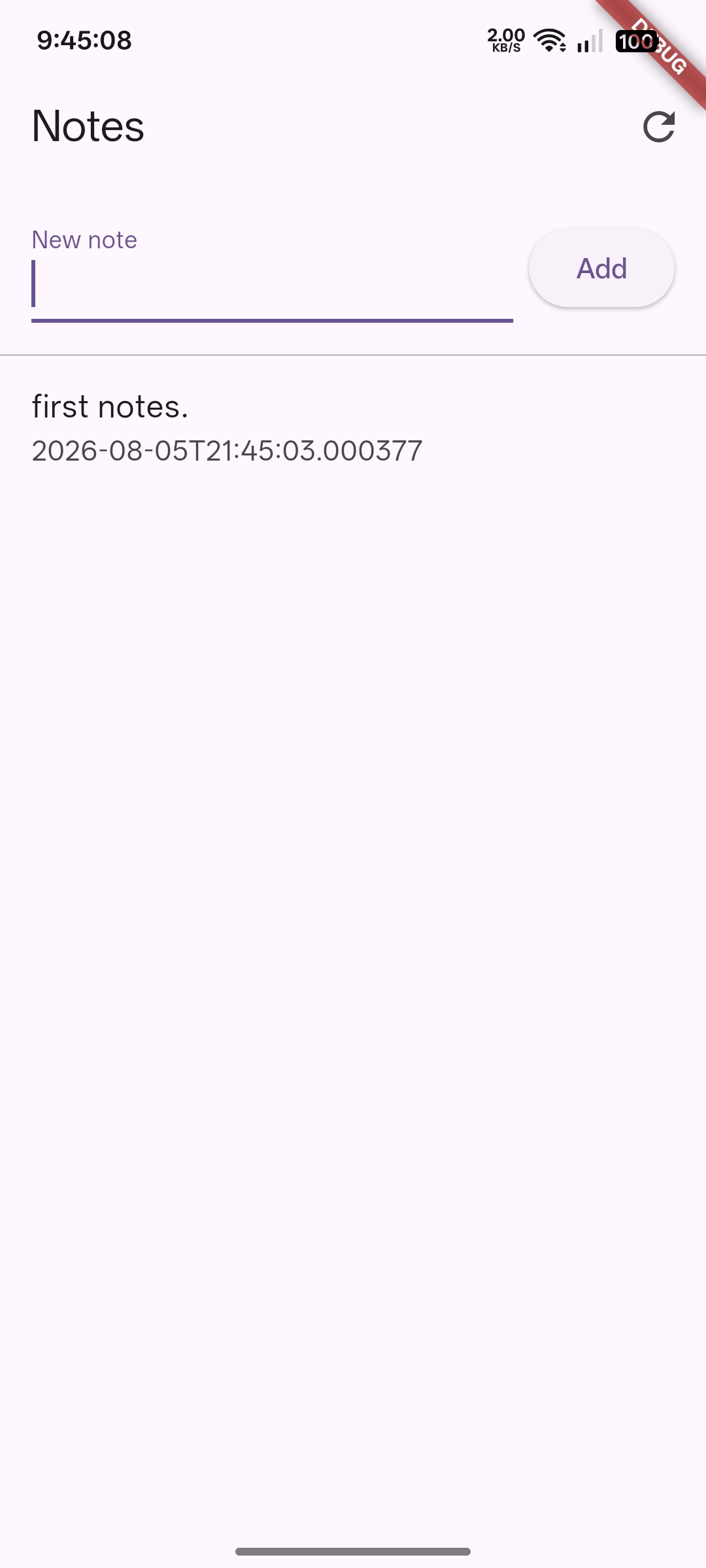
The result: a notes screen that writes to a notes collection through fusabaseDB, with each document carrying the note text, a timestamp, and the creating user. Running on a real device:
And the proof that it’s actually Oracle underneath, not a local mock: the same note appears as a live document in the Fusabase Console’s Database tab, under the notes collection, with text, created_at, and created_by fields exactly as written by the app:
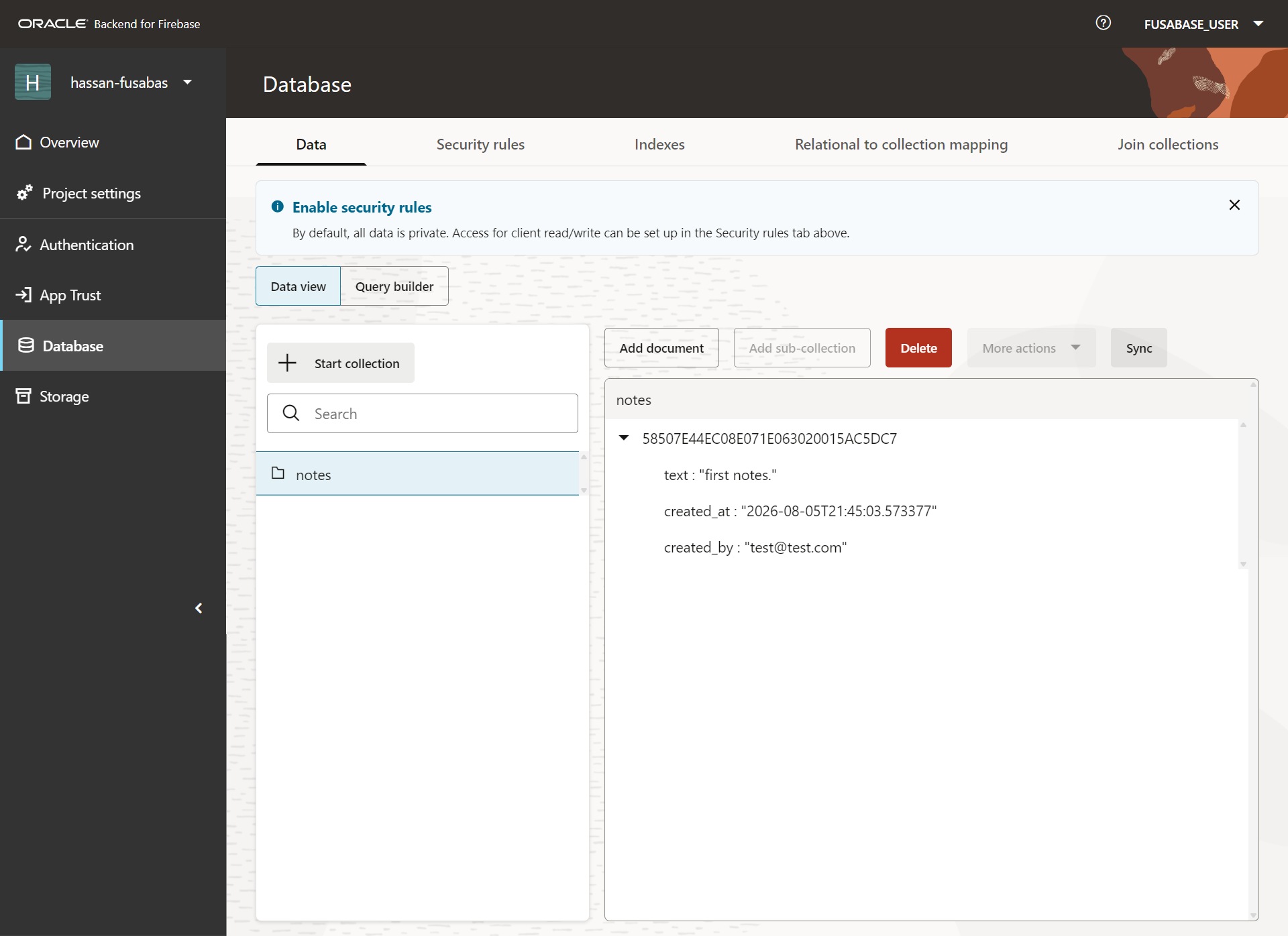
That closes the loop: a self-hosted Oracle Database and ORDS stack, enabled for Fusabase through nothing but SQL*Plus and the ORDS CLI, now backing a real Flutter app with a Firebase-shaped SDK and zero third-party BaaS involved.
Full List of Errors Encountered (and Fixes)
| Error | Where | Cause & Fix |
|---|---|---|
ORA-03405: End of query reached; no additional text should follow. |
Multiple times, pasting multi-line SQL blocks into SQL*Plus | Copy-paste of multiple statements at once confused SQL*Plus’s line buffer. Fix: run statements one at a time, or use a fresh sqlplus session per block. |
ORA-65020: pluggable database ORCLPDB already closed |
Re-running ALTER PLUGGABLE DATABASE ... CLOSE |
Harmless. The PDB was already closed from a previous, successful command that got lost in the pasted block. Verify actual state with SELECT name, open_mode FROM v$pdbs; before assuming failure. |
ORA-01543: tablespace 'FUSABASE_TBS' already exists |
CREATE TABLESPACE |
Object had already been created successfully in an earlier, visually confusing, pasted batch. Confirmed harmless via dba_tablespaces. |
ORA-01920: user name 'FUSABASE_USER' conflicts with another user or role name |
CREATE USER |
Same cause as above, user already existed. Confirmed via dba_users. |
bash: !@localhost: event not found |
Passing a password containing ! inline on the Bash command line |
Bash history expansion intercepts !. Fix: set +H, or better, omit the password from the command line and let sqlplus prompt for it interactively. |
PLS-00201: identifier 'OBAAS_ADMIN.OBAAS_ENABLE_SCHEMA' must be declared |
Running OBAAS_ENABLE_SCHEMA before ords fusabase install |
The OBAAS_ADMIN package doesn’t exist until the ORDS-side installer has run. Fix: run ords --config <dir> fusabase install first. |
ORA-01017: invalid credential or not authorized; logon denied |
ords fusabase install, SYS password prompt |
The first attempt failed; typing the credential again succeeded in this run. Check account/service and input before changing credentials; this does not prove paste was the cause. |
Invalid credentials (Console sign-in page) |
Signing in to the Fusabase Console via /ords/baas-console |
Sign-in succeeded after an authorized schema password reset in this run. Check alias/account/target and credentials first, and coordinate any reset with dependent clients. |
Final Credentials / Connection Summary
| Role | Username | Used for |
|---|---|---|
| Console login / project owner | fusabase_user |
Signing into the Fusabase Console, owns the created project |
| Schema-enablement admin | fb_admin (DBA role) |
Running OBAAS_ENABLE_SCHEMA and similar administrative SQL |
| Database super-user | sys as sysdba |
ORDS installer, COMPATIBLE/TDE/extended-strings setup |
# ORDS landing page (shows the Console tile)
http://<your-host>:8282/ords/_/landing

# Fusabase Console direct sign-in (can sit behind a reverse proxy / custom domain)
https://<your-domain-or-host>/ords/baas-console
  Path:     fusabase_user
  Username: fusabase_user
  Password: <current schema password>

# Fusabase SDK connection (example for Flutter)
ords_host: http://<your-host>:8282/ords/fusabase_user/
schema: fusabase_user- Rotate every password used in this walkthrough: SYS, TDE keystore,
fusabase_user,fb_admin. - Switch the ORDS standalone listener from HTTP to HTTPS.
- Store the TDE keystore password and any generated Fusabase encryption passphrase in a proper secrets manager, not in a compose file or shell history.
Official setup reference: use the Oracle Backend with Firebase APIs 26.1 installation guide for version-specific requirements, schema enablement and production HTTPS. Keep local demo HTTP addresses on a trusted development network.